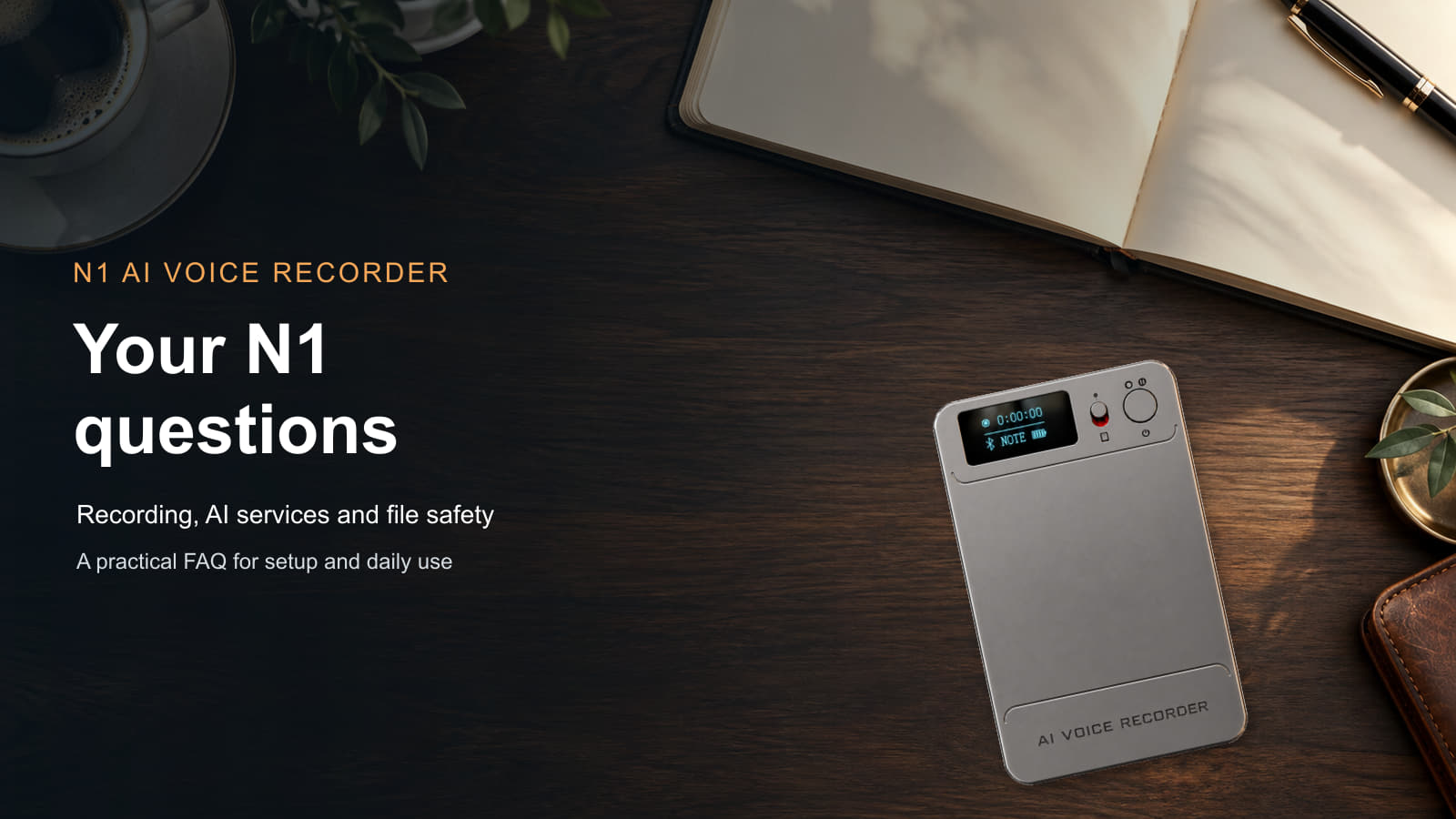
N1 AI Voice Recorder Noise Reduction Settings: A Practical Guide for Meetings and Calls
N1 offers four noise reduction levels in NOTE and CALL. Choose a setting for your room or phone setup, record a short clip and listen back before the important conversation.
See the N1 AI Note Card product specifications and package alongside this guide, then use the listening checklist to evaluate a sample.
In brief
- Find Noise reduction level in Profile > Recording settings after connecting N1.
- For farther voices, try a higher level; High is an option to try in noisier surroundings.
- Compare short clips with the same placement and words. No fixed pickup distance is guaranteed.
Find the controls in MynaAI+
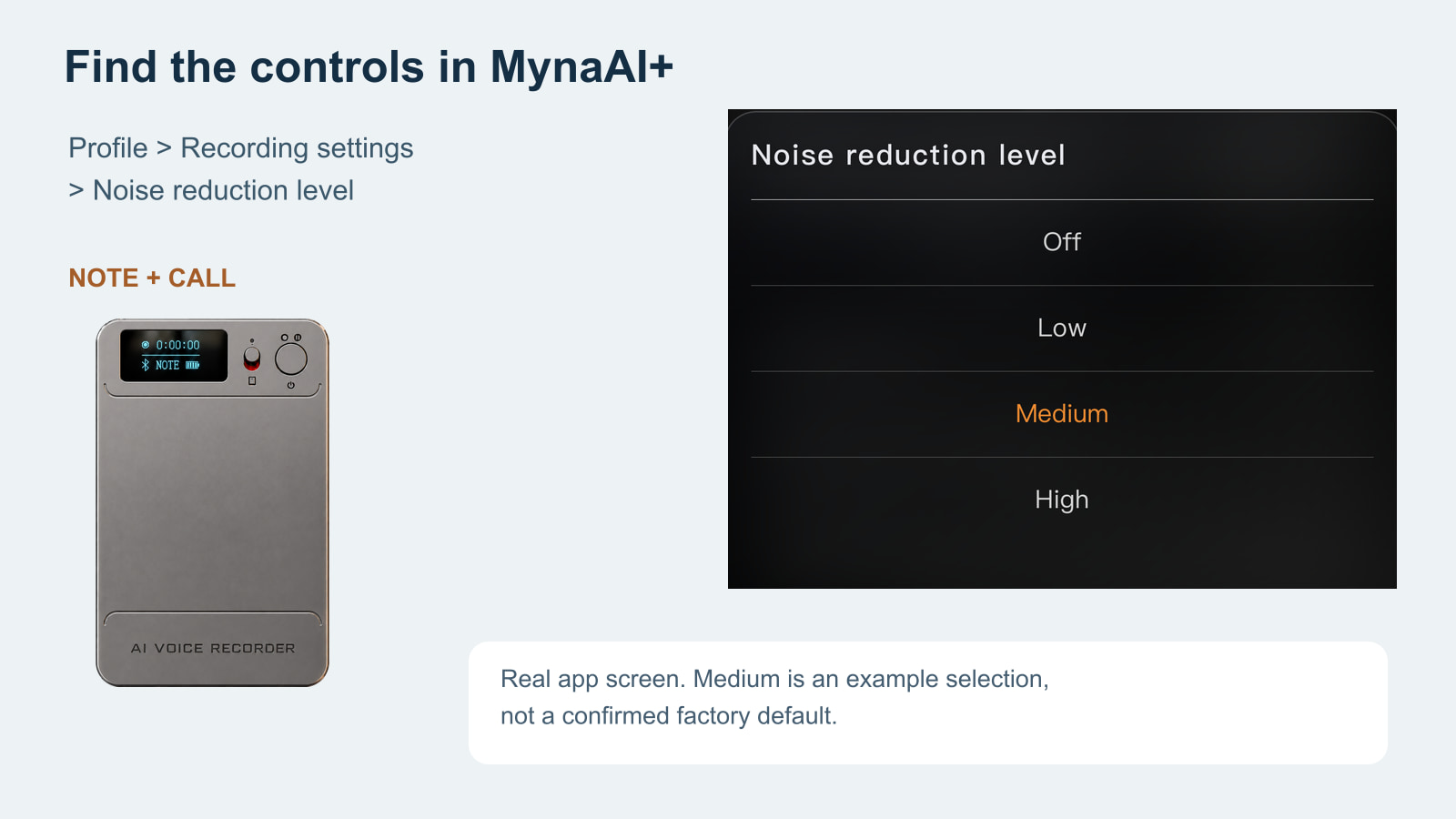
Connect N1, open Profile at the bottom right, then Recording settings > Noise reduction level. The choices are Off, Low, Medium and High. Both NOTE and CALL support this adjustment. The illustrated screen is a real user-provided app example; the selected value in that screenshot is not evidence of the factory default.
Choose the recording mode before your test. When N1 is not recording, double-press Power to switch NOTE/CALL. Use NOTE for meetings, in-person customer conversations, interviews and classes. Use CALL for close-range ordinary phone, WhatsApp and WeChat conversations. The NOTE-versus-CALL placement guide explains how the capture situation differs.
Choose by listening conditions, not just the label
In a quiet conversation, compare Off or Low with another level while leaving N1 in the same position. This provides a useful starting comparison, not a claim that one of those levels is always correct. Listen for the words you need to retain.
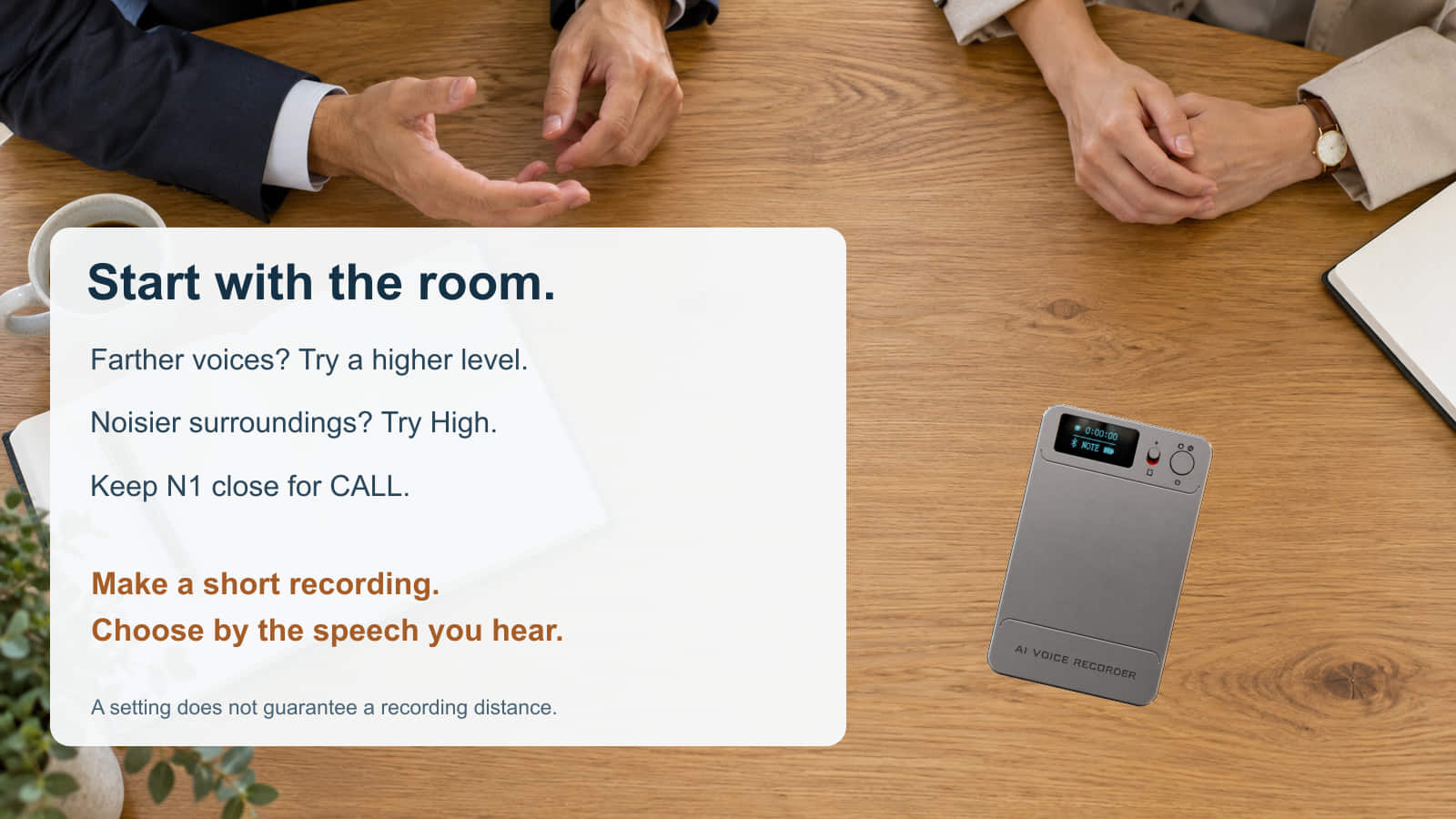
For farther voices in NOTE mode, try a higher level and listen again. For a noisier location, High is an option to test. If a voice is faint, also reconsider placement, speaking volume and microphone obstruction. Changing a setting does not establish a new guaranteed distance or make every room suitable.
For CALL, keep N1 near the phone and compare short clips in that actual setup. Do not assume a meeting result transfers to a handset call. A setting cannot be described as a guaranteed solution for every phone or every calling app.
Run a repeatable four-clip check
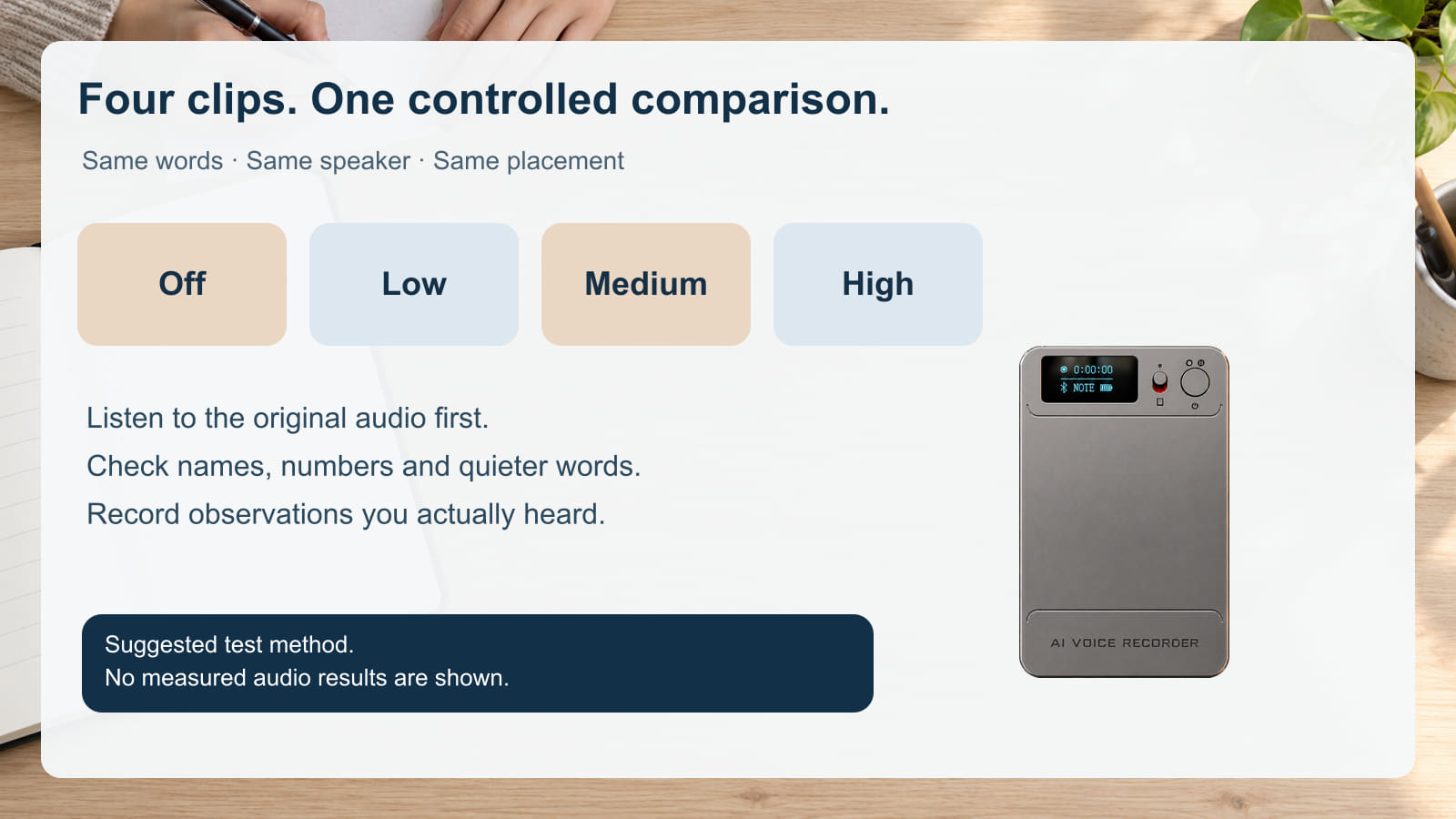
Write a short, permitted test script with an ordinary sentence, a name, a number and an action date. Keep the speaker, speaking level, room and N1 position the same. Record one short clip per setting and note the order outside the recorder so you can identify each file later. Change only the noise reduction selection between clips.
Listen to the original recordings before comparing AI transcripts. Can a colleague understand the name and number? Are quieter words complete? Does background sound make the conversation hard to follow? Record observations rather than awarding a result you have not heard. If you move N1, repeat the comparison rather than treating the new clip as evidence of the setting alone.
Use this as a sample-evaluation method, not a published performance result. Keep the original clips with your notes. The distributor sample-test guide extends the check to controls, file access and AI processing.
Review the source before evaluating AI notes
A transcript or summary is useful only when you check that it represents the conversation. First listen to the recording, then inspect the AI text for consequential names, figures and dates. An attractive summary is not proof that the source words were clear. AI text still needs human review.
To transfer the clips, connect N1 in MynaAI+ and tap Waiting for transfer. Keep the app in the foreground and the phone unlocked; switching apps, locking the phone or placing the app in the background interrupts transfer. Transfer time varies, so do not promise a fixed schedule.
Transcription, summaries and mind maps use applicable AI allowance. Current complimentary amounts, balances and refresh information are shown in Profile; extra options and current prices are in My VIP membership. Recording itself does not require a paid AI service. Cloud upload is separate: it starts off and requires completed device-to-app transfer before upload is enabled.
Use an honest demonstration to help buyers decide
A distributor can demonstrate the settings page, the actual microphone placement and the original clips. Separate a hands-on result from a suggested use case. If you have not tested a noisy cafe, classroom or customer phone, do not describe the corresponding illustration as proof that N1 performs well there.
Ask business customers which conversations matter, how close the recorder can be placed and who will review the files. Buyers needing guaranteed capture across a large room should evaluate their intended layout rather than rely on a headline. Preserve approved originals before deleting, formatting or unbinding a sample. The N1 setup and troubleshooting FAQ covers file safety and connection recovery. Review Eleshine’s company profile alongside your product evaluation.
What to write in the sample record
| Setup | NOTE or CALL; room or phone; speaker and recorder position. |
|---|---|
| Selection | Off, Low, Medium or High for each identified clip. |
| Observation | Names, numbers, quieter words and background distractions you actually heard. |
| Decision | Which setting suits that setup, and which situations still need testing. |
Frequently asked questions
Where do I change noise reduction on N1?
Connect N1 to MynaAI+, then open Profile > Recording settings > Noise reduction level. Choose Off, Low, Medium or High.
Is noise reduction available in both NOTE and CALL?
Yes. Both modes offer the four selections. Evaluate the result in the mode and placement you actually intend to use.
Is High always the best choice?
No setting is established as best for every situation. High is an option to try in noisier surroundings; compare a short recording and choose by the speech you hear.
Will a higher level guarantee recording across a larger room?
No fixed pickup distance is guaranteed. For farther voices, try a higher level and test the actual placement, speaking level and room.
Does the illustrated Medium selection show the factory default?
No. It shows the selected value on a user-provided example screen. A factory default noise reduction level has not been confirmed.
Should I compare AI transcripts or original audio first?
Listen to the original clips first. Then check important transcript details against the audio; AI processing is a separate step using applicable allowance.
Choose N1 with your actual recording scenario
Share your intended meeting or call setup, target market, quantity and sample needs. Request an N1 sample quotation to evaluate the settings and file workflow before selecting the product for your channel.
QR Code Doorbell vs Video Doorbell: A Distributor’s Buyer Guide
AI Voice Recorders for Sales Teams: From Conversations to Follow-Up Notes