N1 AI Voice Recorder FAQ: Setup, Sync and Troubleshooting
You can start recording on N1 before installing an app. Turn it on, slide the recording switch up, then slide it down to stop and save. Connect MynaAI+ later to transfer the recording and use AI tools or cloud storage.
See the N1 AI Note Card features and product details, or jump to the question that matches your next step. The answers below cover everyday recording, file handling and practical software checks.
Start recording and set up the app
1. How do I record, pause and switch N1 off?
Hold Power for about two seconds to turn N1 on or off; startup shows START. Slide the recording switch up to record and down to stop and save. During recording, short-press Power to pause or resume. Recording does not require a phone connection, app account or paid AI plan. Once connected, the app can also control recording.
2. When should I choose NOTE or CALL? Is speakerphone necessary?
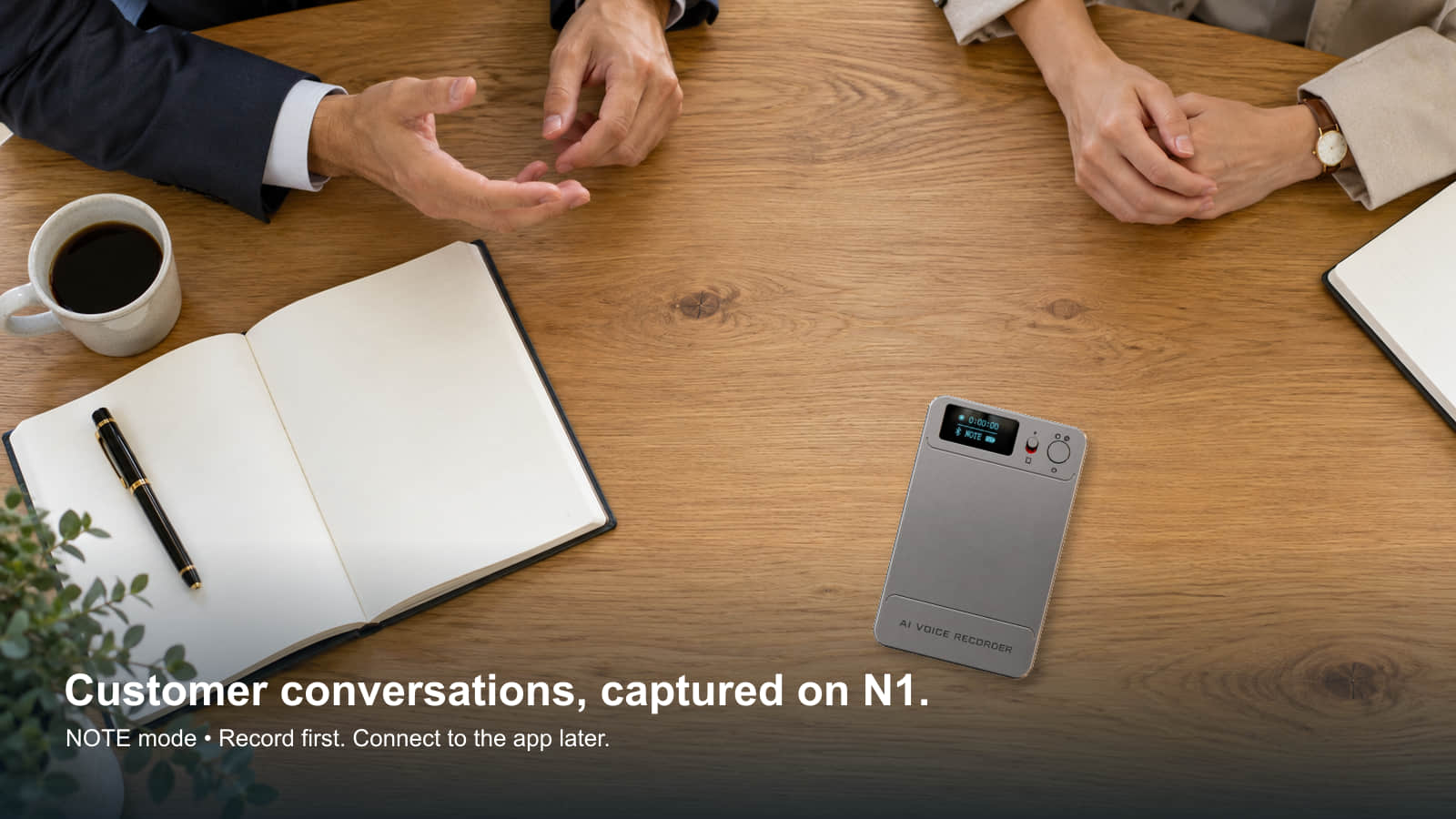
Choose NOTE for meetings, customer discussions, interviews, classes and training, or video meetings and online/live classes played aloud through a nearby speaker. Choose CALL for close-range ordinary phone, WhatsApp and WeChat calls. Keep N1 near the handset. Speakerphone is not required when nearby audio is sufficiently clear; results vary with position, volume and noise. Double-press Power when not recording to change modes. The NOTE and CALL placement guide provides sample checks. Obtain any required recording consent.
3. Should I charge before first use? Can N1 record while charging?
Fully charge N1 before first use with the supplied magnetic data cable. The theoretical estimate is about two hours, but actual charging can take longer. N1 supports recording while charging. Battery life and available recording capacity vary with the actual configuration and use; check your unit rather than treating approximate figures as guaranteed.
4. How do I install MynaAI+ and register? What if the code does not arrive?
Scan the app-download QR in the quick guide for iPhone or Android. The separate full-manual QR opens detailed instructions; the two QR codes have different purposes. Register, choose your user region, and accept AI services, Bluetooth, location and other permissions as your phone prompts. If a verification code does not arrive, check the email address and spam folder, then retry as prompted. The supplied QR destinations should match your product.
5. Where do I change the default recording length, and when are files saved?
The recording-length setting defaults to 10 minutes. Change it in Recording Settings if needed. A normal stop, button power-off or low-battery shutdown saves the current recording. N1 warns when storage is full. After saving, about 30 minutes of inactivity switches the recorder off. Export important files before clearing space.
Transfer, process and keep your recordings
6. How do I sync a recording, and how long will it take?
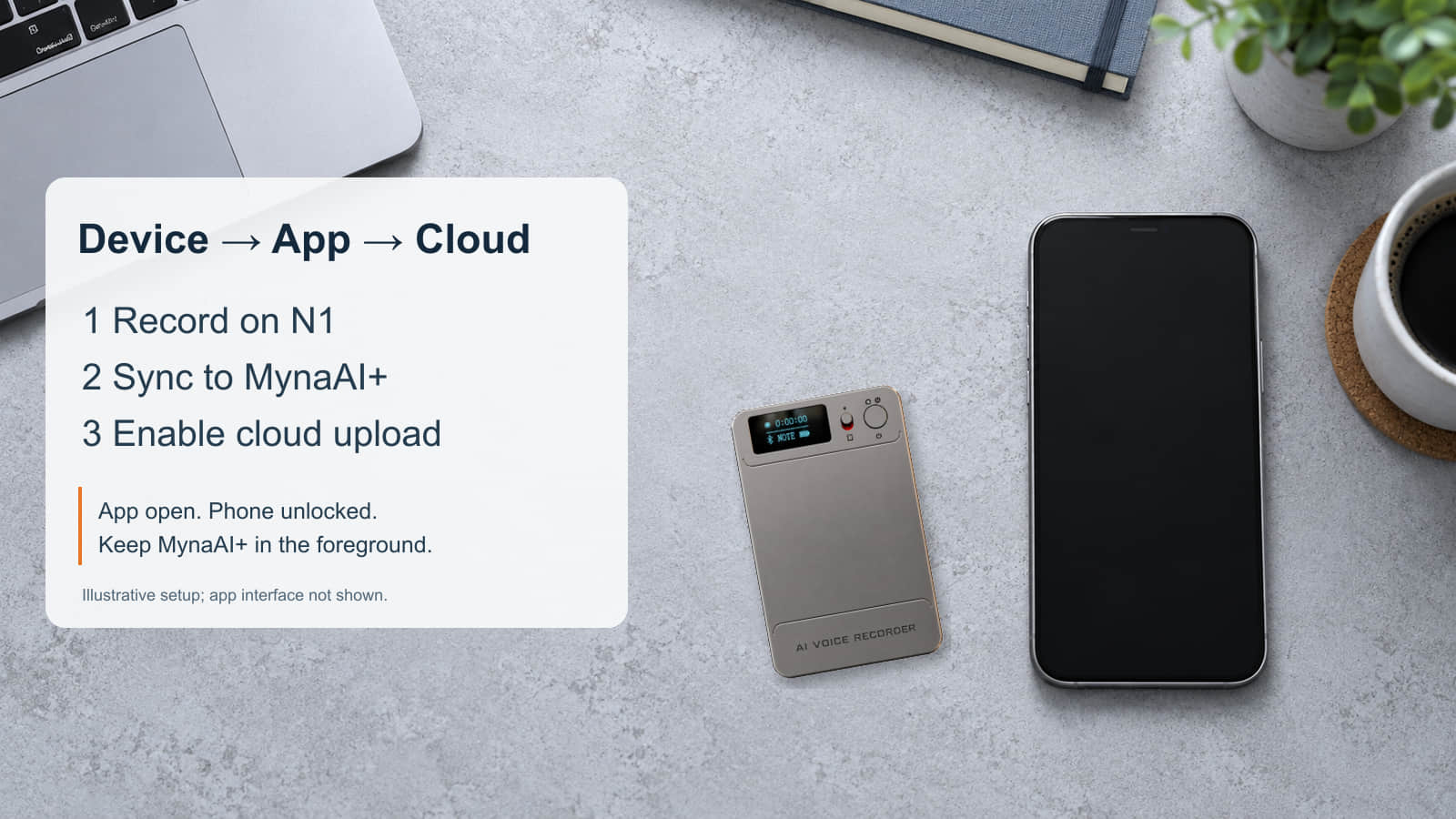
In MynaAI+, open Files and tap Not connected at the top left to find and add N1. Once connected, tap Waiting for transfer beside a recording. Keep the app visible in the foreground and the phone unlocked until transfer completes. Locking, switching apps or putting MynaAI+ in the background interrupts it. Keep N1 connected and nearby. Transfer time varies by phone, file and connection; use the displayed file state as your guide. Wait for the app to confirm that the selected file has finished transferring.
7. How do I check AI allowance and available processing options?
Profile, at the bottom right, shows current complimentary AI time, image-recognition allowance, balances and next reset date. My VIP membership shows extra options and current prices. Transcription, simultaneous interpretation, AI Encyclopedia and image translation use the applicable AI allowance; summaries and mind maps also consume allowance. Exact amounts and consumption follow the app. AI allowance being used up does not stop N1 recording original audio. Check important AI-generated names, figures and quotations against the recording.
8. Why is a file not in the cloud? Is cloud upload automatic?
Cloud upload is off by default. First fully transfer the recording from N1 to the phone app. Then enable upload in Profile > My cloud and confirm it finishes. A file only on N1 cannot upload directly. If the file is missing from the cloud, check both app-transfer completion and the cloud switch. Under the current rule, cloud storage is free without file-count, individual-file-size or retention-time limits while N1 remains bound and in use; AI processing has a separate allowance.
9. What does deleting a synced recording in the app remove?
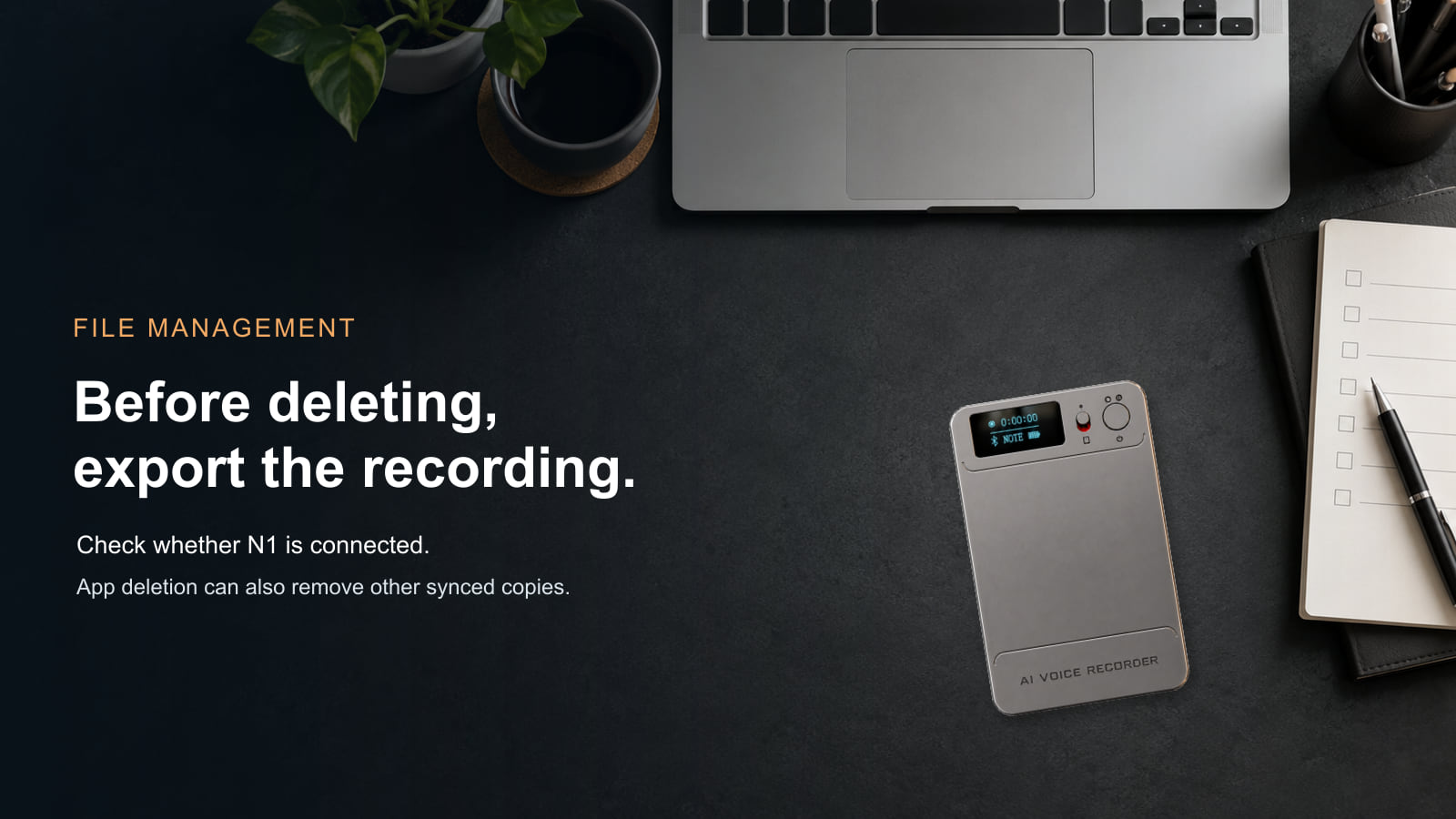
Export important recordings first. For an already synced file, deletion depends on N1’s connection at that moment. An account can be bound while the recorder is disconnected; binding alone does not mean an active connection:
| N1 connection | What is deleted | What remains on N1 |
|---|---|---|
| Connected | Corresponding device, app and uploaded cloud copies | The device copy is deleted. |
| Disconnected | App and corresponding cloud copies | The original remains and reappears as Waiting for transfer after reconnection. |
10. Can I export MP3 to a computer? Why is the USB drive missing?
Power N1 off before connecting it to a computer with the supplied magnetic data cable. Use the supplied USB adapter where needed. Open the recorder as a USB drive and copy its MP3 files; no extra app setting is required. If it does not appear, recheck power-off status, cable and connectors. Play a copied file before deleting the original. The MP3 export and backup guide explains this file-retention route.
Fix problems and manage the device
11. What should I check for software, Bluetooth or firmware problems?
For general app or device software issues, check your app store for a MynaAI+ update, then Recording settings > Firmware upgrade. Follow the app prompts during an update and keep the connection intact while the upgrade is in progress. N1 automatically restarts after a completed firmware update. If the app does not reconnect promptly, close it, reopen it and sign in again. For Bluetooth connection issues, check phone Bluetooth, N1 power and distance, reopen the app, power N1 off/on and retry from Files > Not connected.
If N1 freezes, hold Power for more than 15 seconds until its screen turns off. This forces a restart. Reset the device through the app when needed, and export important recordings before reset or unbinding.
12. Do I need to unbind when changing phones? What about another account?
Keep the same account when changing phones; unbinding is not required. One N1 binds to one account at a time, while an account may manage multiple devices. To hand N1 to a different account, export important recordings and unbind it from the old account first. Unbinding clears device files. Purchased AI services follow N1 and remain with the device after unbinding.
13. How do I use the protective case and magnetic ring?
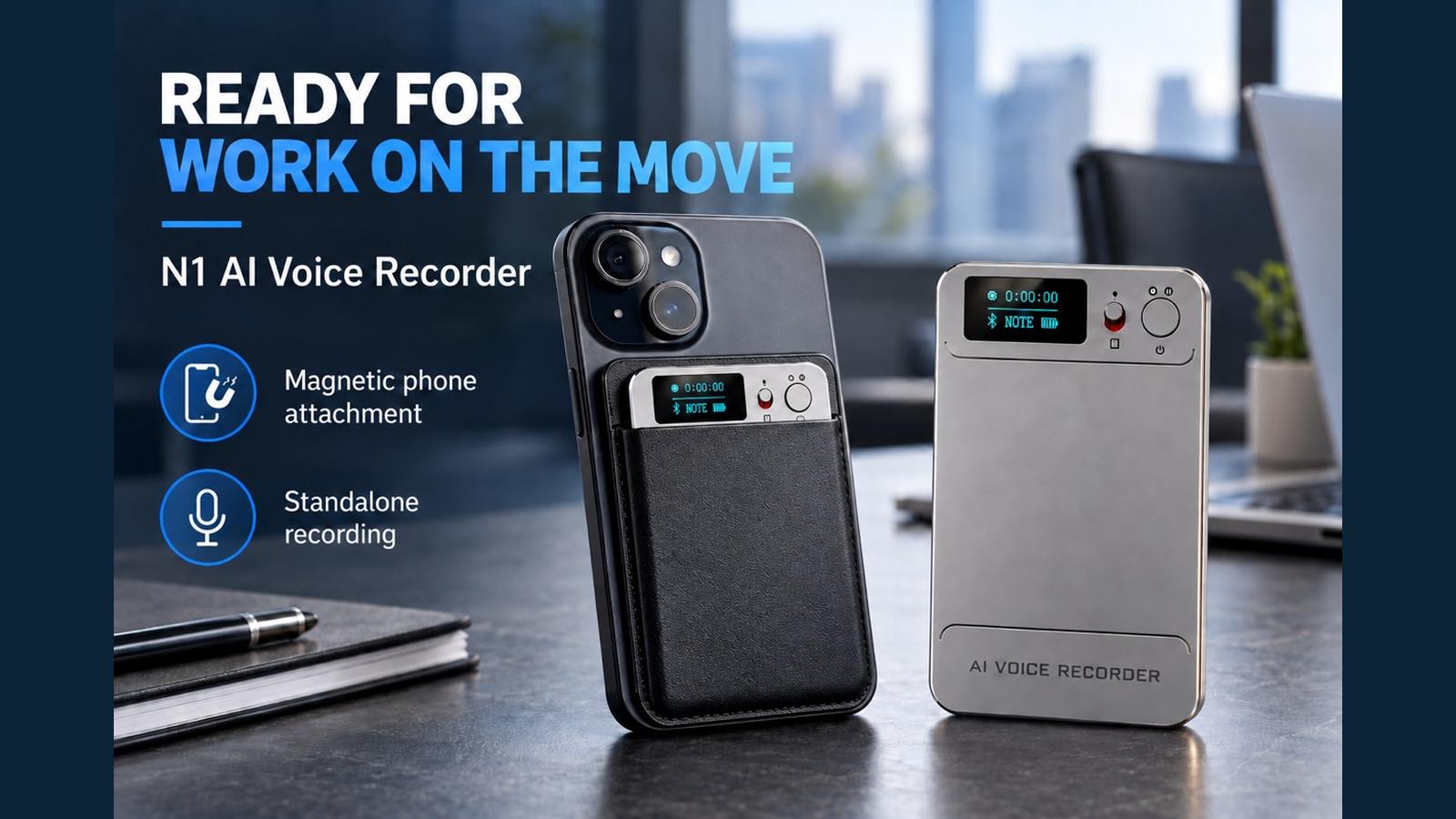
Put N1 in the case without covering the screen, switches or microphone openings. Attach it to a compatible magnetic phone or phone case. For a suitable non-magnetic surface, place the supplied ring on a clean, flat area before attaching the case. Check that it is secure before carrying or using it.
14. Where can I get further help?
Tap the support icon at the top right of the MynaAI+ home screen. Include the steps taken, relevant screen message and whether app/device updates have been checked. Support staff review questions and reply. For other practical reading, browse the Eleshine Buyer Guide library.
For configuration, service costs and sample planning, read the N1 buyer FAQ for distributors.
If you are evaluating N1 before buying or adding it to a product range, contact Eleshine for product information with your intended recording scenarios and target users.
N1 AI Voice Recorder Buyer FAQ: Costs, Configuration and Handover