AI Voice Recorders for Sales Teams: From Conversations to Follow-Up Notes
N1 helps sales teams capture customer conversations independently, then use MynaAI+ to organize the recording afterwards. Evaluate whether this record-to-review workflow helps your business customers retain the details they need for follow-up.
Compare the N1 AI Note Card features and package while you read; use the checklist below to decide what your sample needs to prove.
In brief
- Record without a phone connection, app registration or paid AI service.
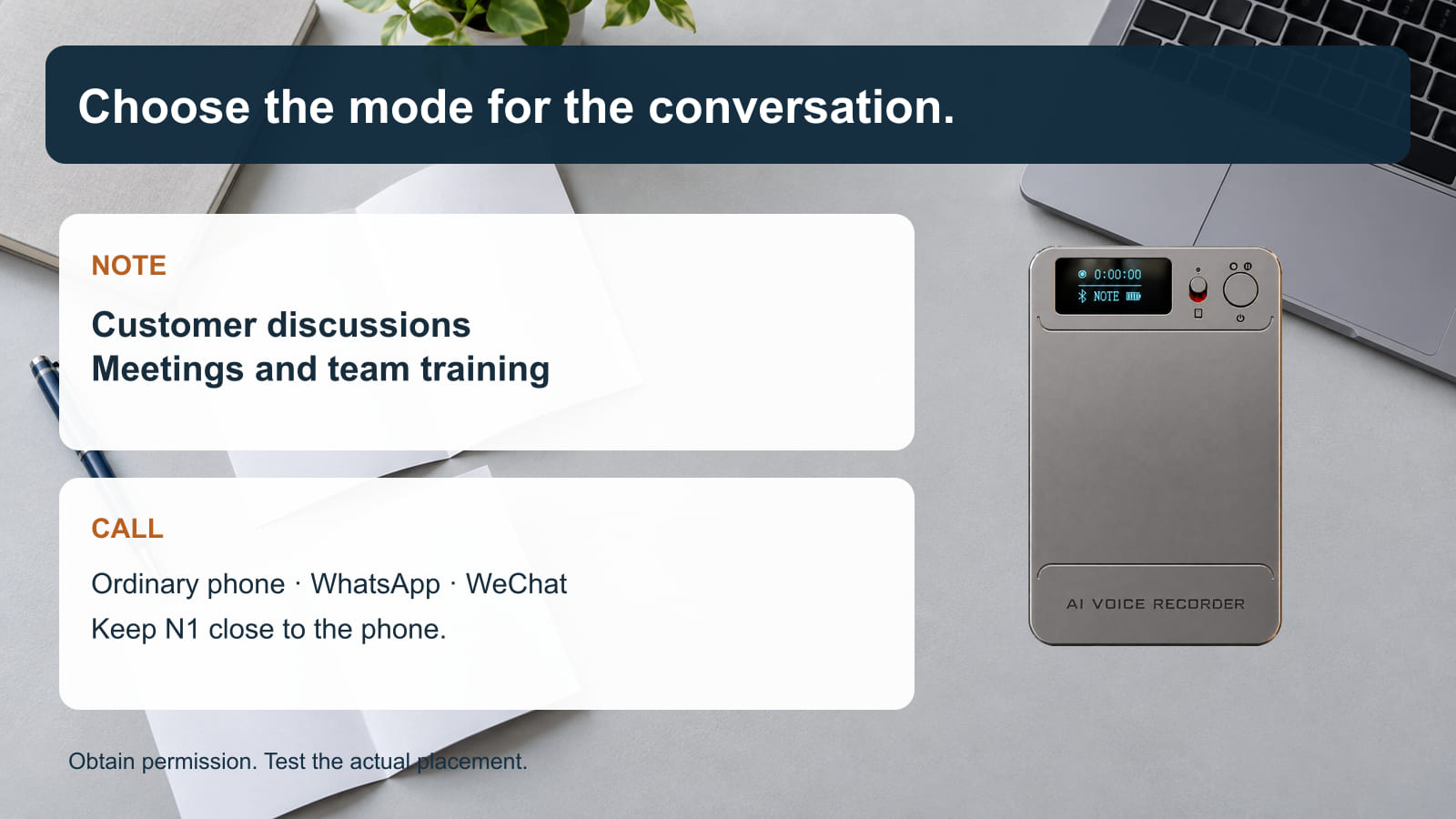
- Use NOTE for face-to-face discussions; use CALL for nearby phone conversations.
- Sync later, choose AI processing, and check names, numbers and commitments yourself.
Where a sales team can use N1
Consider three everyday situations. In a customer meeting, the salesperson needs to listen while keeping track of requirements and objections. During product training, several people may explain specifications and exceptions. On a follow-up call, a buyer may confirm a quantity, date or requested change. These are suggested applications, not customer case studies.
NOTE mode suits in-person customer discussions, meetings, interviews and training. CALL mode is for close-range ordinary phone, WhatsApp and WeChat calls. Keep N1 near the phone and test the actual placement. For a video meeting, NOTE can capture audio played aloud through a nearby speaker; it is not a direct digital meeting-platform integration. Obtain permission and follow applicable recording rules and company policy.
Capture first; connect when the conversation is over
Hold Power for about two seconds to turn N1 on, then slide the recording switch up to start. Slide it down to stop and save. Short-press Power during recording to pause or resume. Before recording, double-press Power when the recorder is not recording to switch NOTE/CALL.
The physical workflow lets the phone serve an agenda or presentation while N1 handles capture. It does not remove the need for good placement or a short sound check. Keep microphone openings clear. If the buyer is deciding between existing phone tools and a dedicated device, the recorder-versus-smartphone guide provides a fair comparison framework.
Turn the recording into a checked follow-up brief
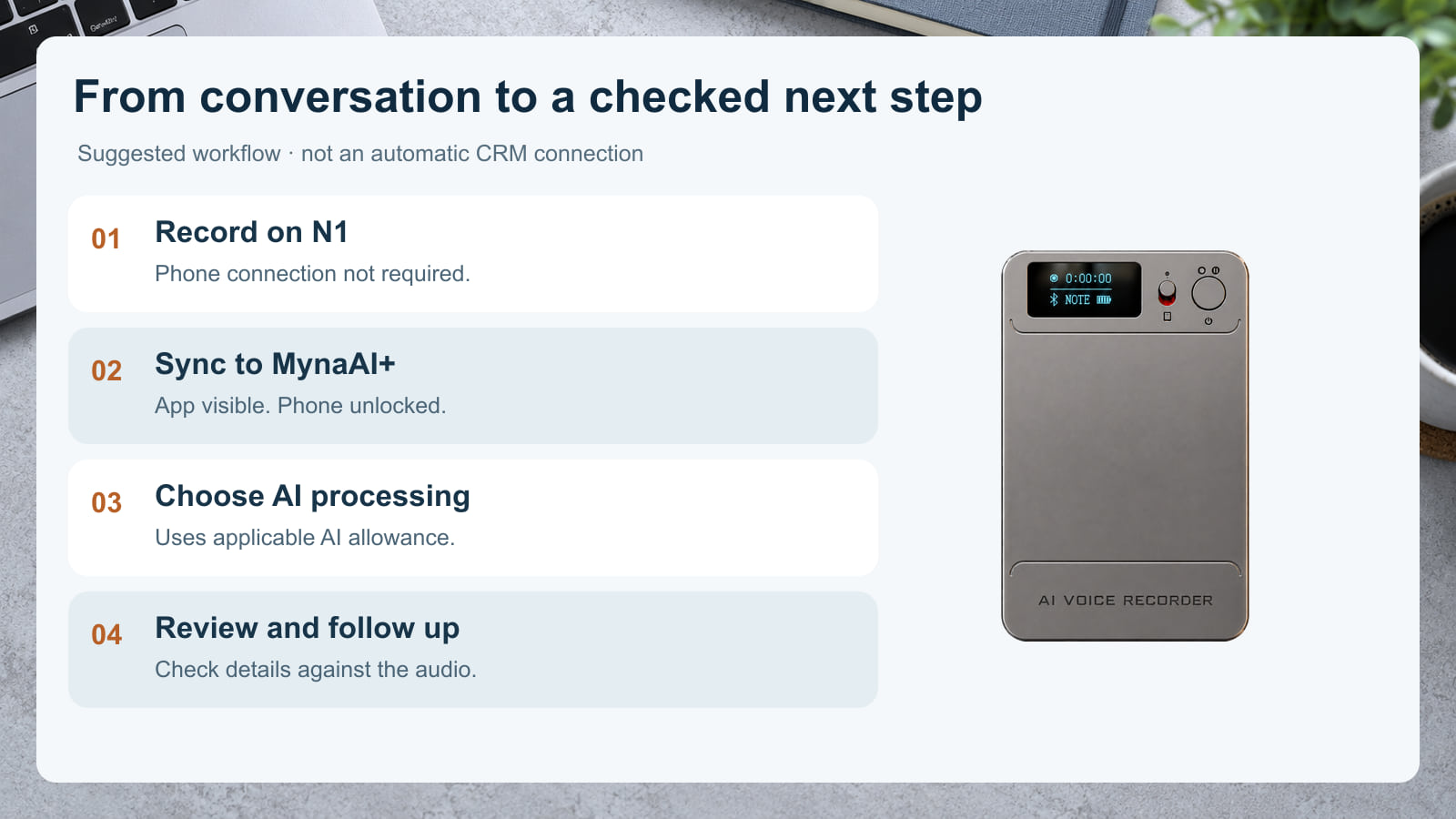
Open MynaAI+, connect N1 and tap Waiting for transfer beside the recording. Keep the app visible in the foreground and the phone unlocked until syncing finishes. Locking the phone, switching apps or backgrounding MynaAI+ interrupts transfer. Do not plan the workflow around a fixed transfer time.
After transfer, choose transcription, summary or mind map as needed. These AI actions use applicable allowance. Check current balances and refresh information in Profile; My VIP membership shows extra options and current prices. Independent recording remains available without buying AI processing.
Build a short follow-up brief yourself: what the buyer needs, which details remain open, who owns the next action and what date was actually agreed. Compare consequential names, figures and commitments against the original audio. This is a suggested review method, not an N1 automatic task manager, CRM connection or guaranteed transcript format.
For example, a review sheet might contain four headings: requirement, point to clarify, responsible person and next contact date. Populate it only with information actually agreed; mark missing information as an open question. This proposed template helps the buyer judge the usefulness of the workflow without assuming that N1 generates those fields automatically.
Make file ownership part of the team workflow
Decide who may record, who may review and where approved originals will be kept. N1 can provide an independent MP3 copy: power it off and connect the supplied magnetic data cable to a computer, using the included USB adapter if needed. USB support must be enabled. If files cannot be read, connect through MynaAI+ to check Profile > Recording settings > USB support, then power off and reconnect to the computer.
Cloud upload is optional and off by default. Transfer a file to the phone app first, enable upload in Profile > My cloud, and confirm completion. A file still only on N1 cannot upload. Before deleting a synced file, check connection state: with N1 connected, app deletion removes the device, app and uploaded cloud copies; disconnected, the device original remains. The N1 setup and file-safety FAQ explains the full process.
What a distributor should demonstrate before recommending it
Use an authorized sample conversation containing a product requirement, a number and an agreed next step. Let a colleague operate the controls without coaching, then have them transfer and review the file. Ask whether the original is understandable and the AI output is useful after checking it. Do not substitute a polished summary for listening to the source.
Position N1 for buyers who want dedicated capture and are comfortable with a later app-processing step. Buyers requiring automatic CRM entry, background phone syncing or guaranteed word-for-word accuracy should identify those requirements before purchase; these are not established N1 capabilities. Discuss the current configuration, documentation and commercial terms for the actual project. The distributor sourcing FAQ covers the wider purchasing questions. See Eleshine’s company profile for supplier background.
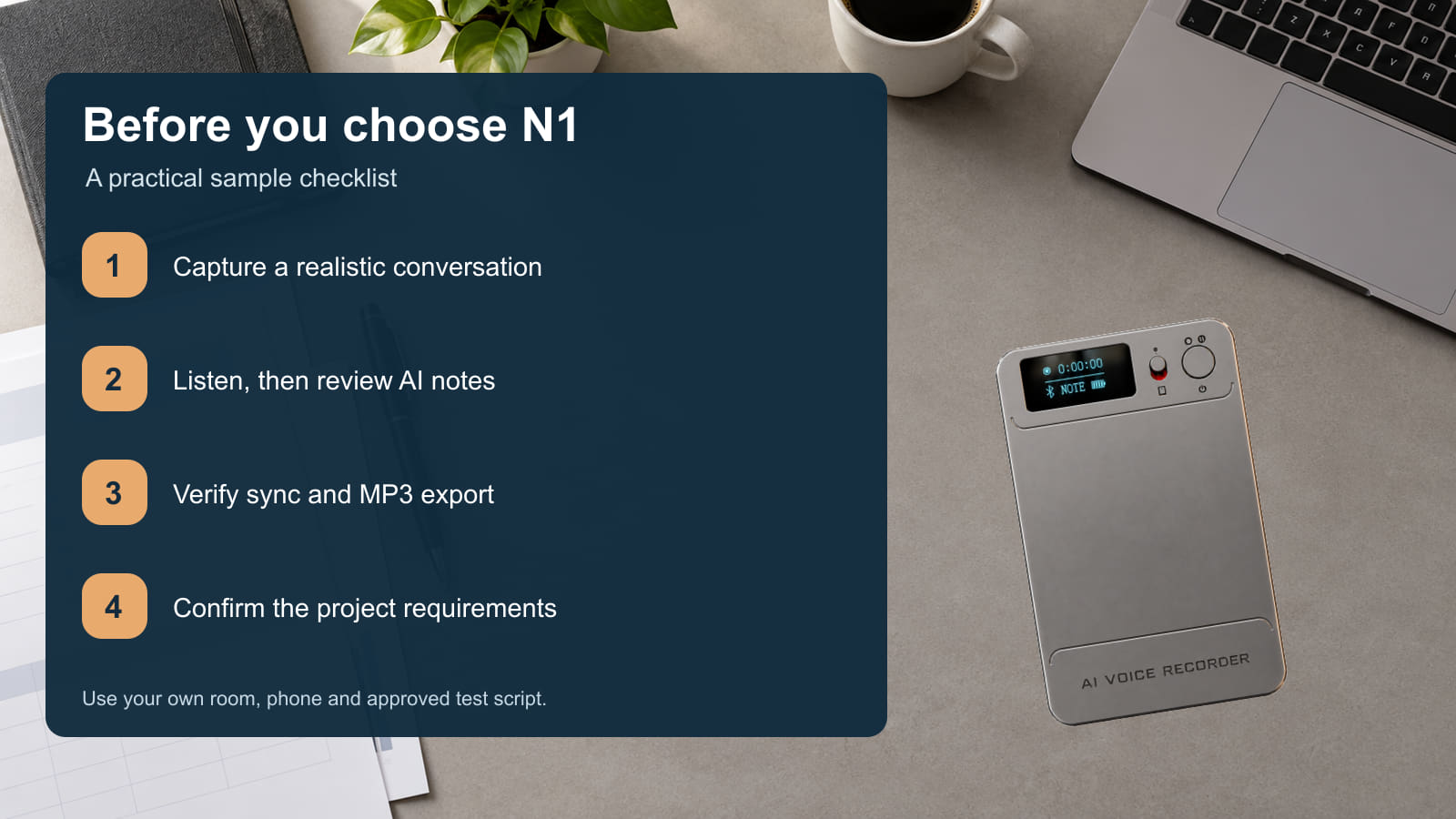
A four-point sample decision
| Capture | Test a realistic meeting or nearby call with permission. |
|---|---|
| Review | Listen to the MP3, then check an AI result against it. |
| Handover | Verify foreground transfer and an independent MP3 export. |
| Commercial fit | Confirm current AI options, target users, quantity and requested documentation. |
Frequently asked questions
Does N1 need a paid AI plan to record a customer meeting?
No. N1 records independently without app registration, phone binding or paid AI. Later app processing uses the applicable AI allowance.
Which mode should a salesperson choose?
Use NOTE for in-person customer discussions and training. Use CALL for close-range ordinary phone, WhatsApp and WeChat calls; test the phone placement.
Can N1 automatically update our CRM?
Direct CRM integration is not confirmed. Review the recording and AI output, then enter approved information into your existing process yourself.
Can I use another phone app while a file is syncing?
Keep MynaAI+ in the foreground and the phone unlocked. Switching apps, backgrounding it or locking the phone interrupts transfer.
Can the team keep an original outside MynaAI+?
Yes. With USB support enabled, power N1 off and connect the supplied magnetic data cable to a computer to copy the MP3. Use the supplied USB adapter when needed.
Evaluate N1 for your sales workflow
Tell Eleshine your main use case, target market, expected quantity and sample needs. Request an N1 sample quotation and ask which configuration and documentation fit your project.
N1 AI Voice Recorder Noise Reduction Settings: A Practical Guide for Meetings and Calls
N1 AI Voice Recorder FAQ: Setup, Sync and Troubleshooting