

N1 AI Note Card
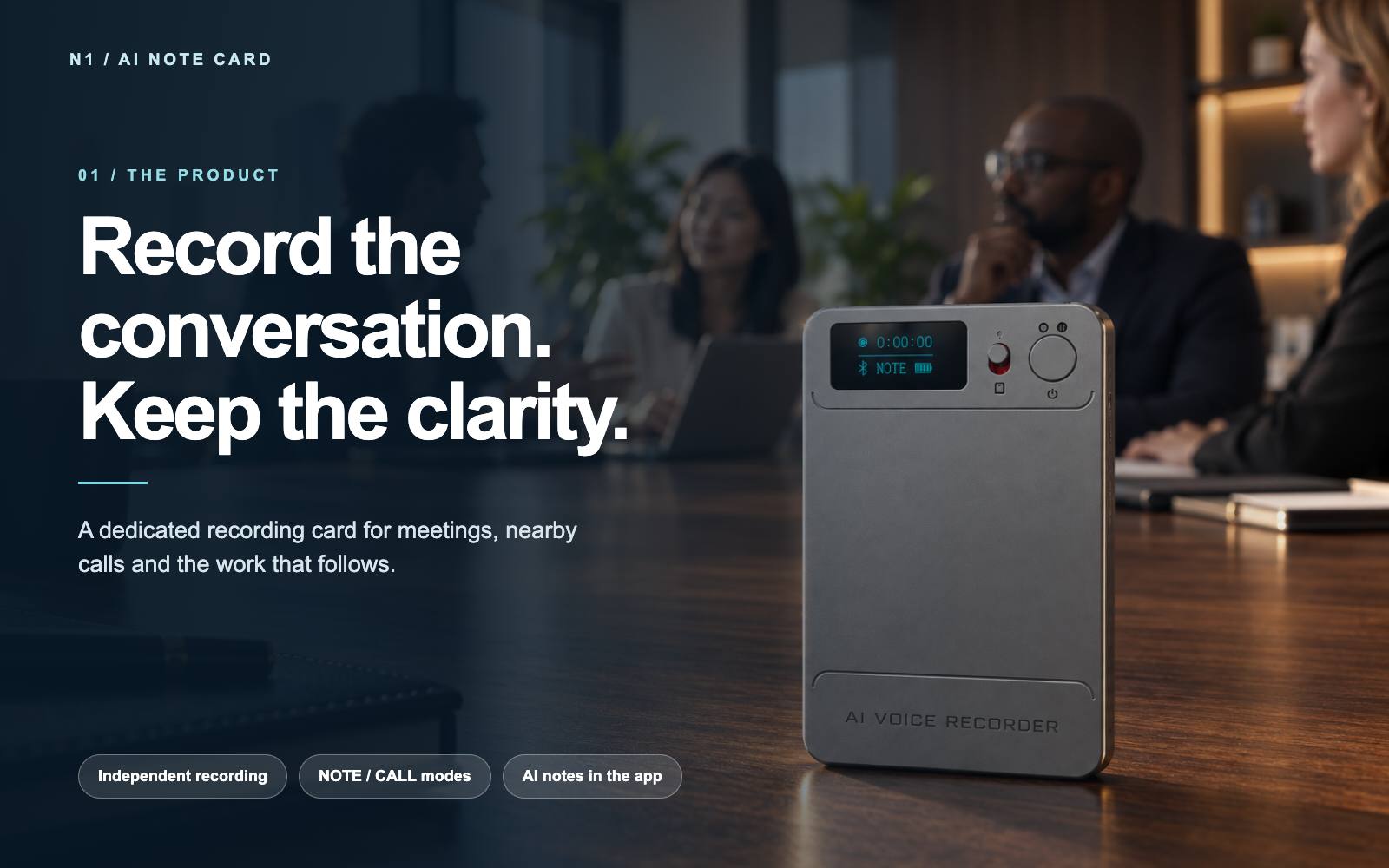
Record the conversation. Find what matters next.
N1 is a compact AI voice recorder for meetings, interviews and nearby calls. Start recording on the card even when no phone is connected. Transfer the finished recording to the companion app to create a transcript, summary or mind map. At a glance: independent recording, NOTE and CALL modes, original MP3 files, app AI tools and free cloud storage for synced recordings.
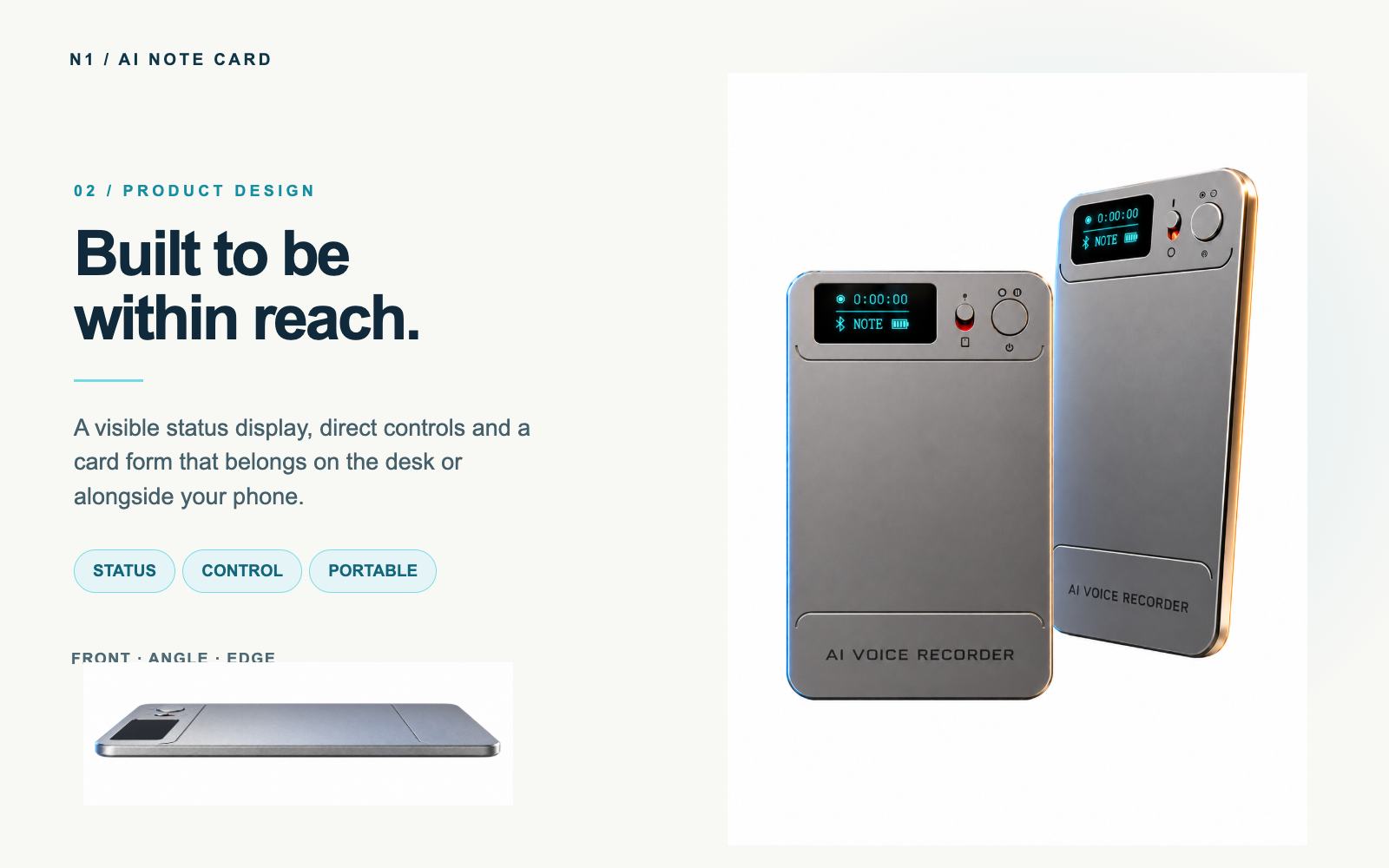
A recorder you can reach for
The display shows recording status and the selected mode. The physical recording switch and Power button let you operate N1 directly. The app provides another way to control recording when the device is connected.
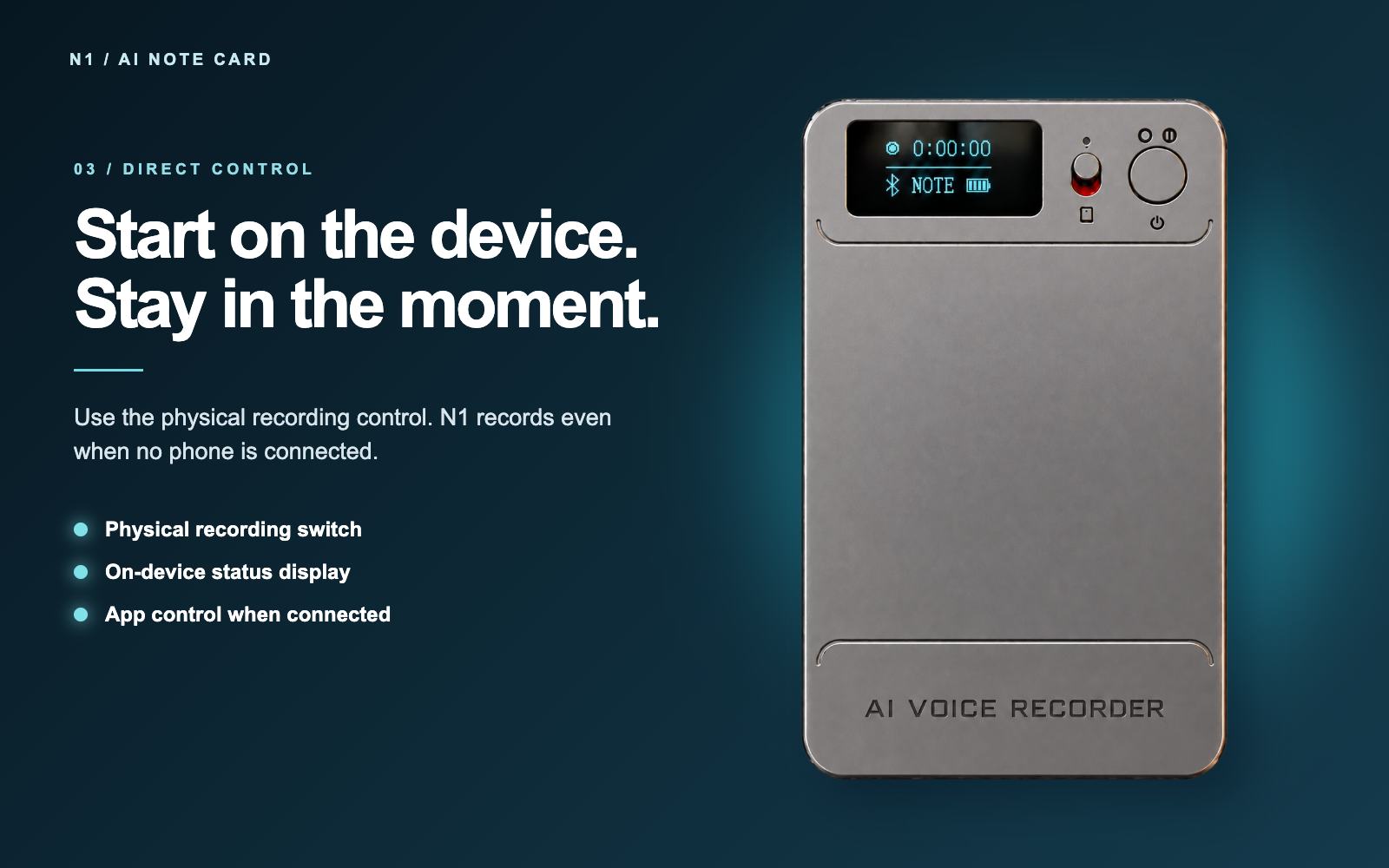
Start on N1. Review in the app later.
Hold Power for about two seconds to switch N1 on; the startup display reads START. Slide the recording switch up to start and down to stop and save. Double-press Power while idle to change between NOTE and CALL. A normal stop, button power-off or automatic low-battery shutdown saves the recording.
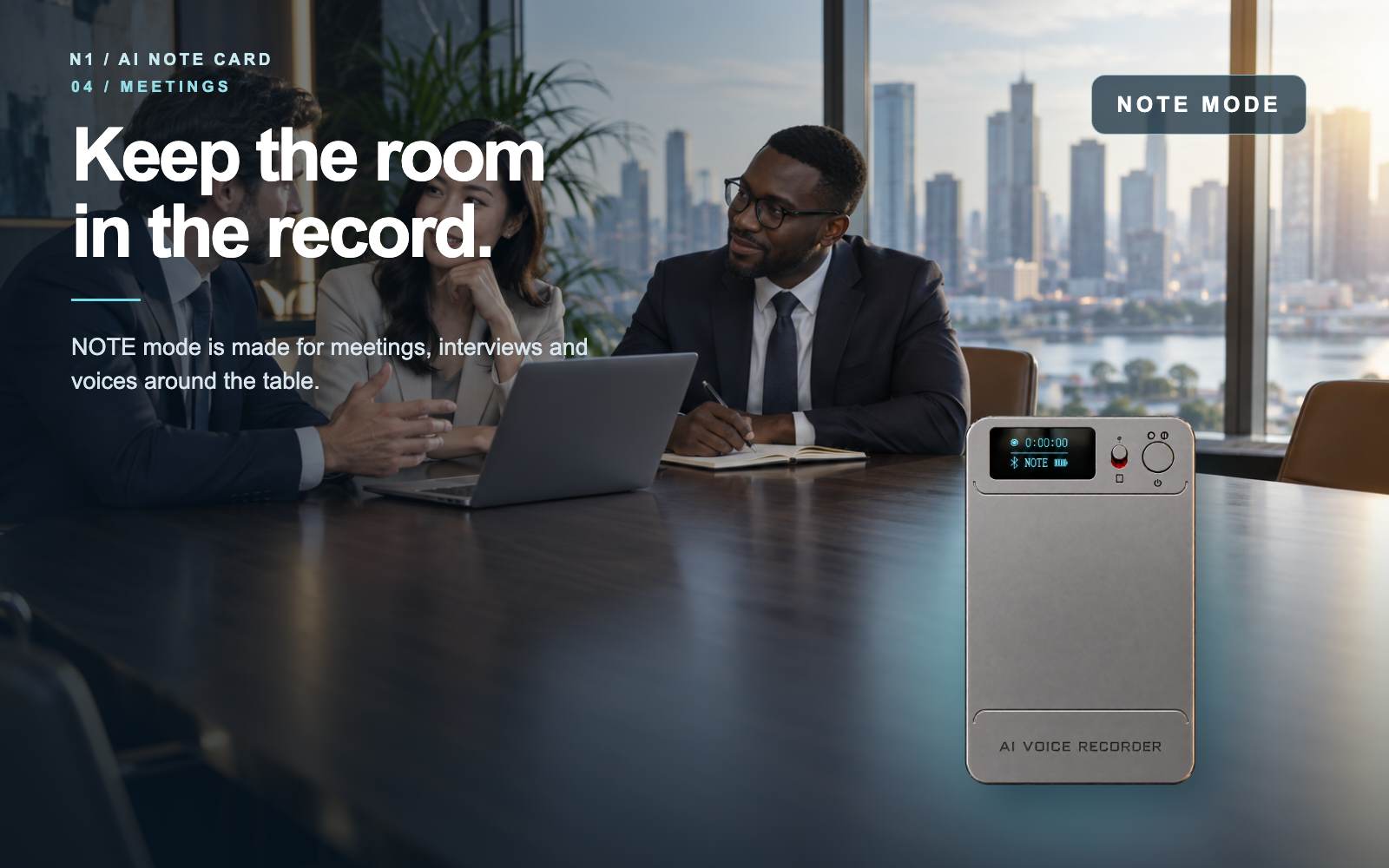
NOTE mode for the room
Choose NOTE mode for meetings, interviews, lectures and spoken ideas. Place N1 where speakers can be heard clearly. A suggested range is about 4–5 metres in suitable conditions; clarity depends on distance, room acoustics and background noise.
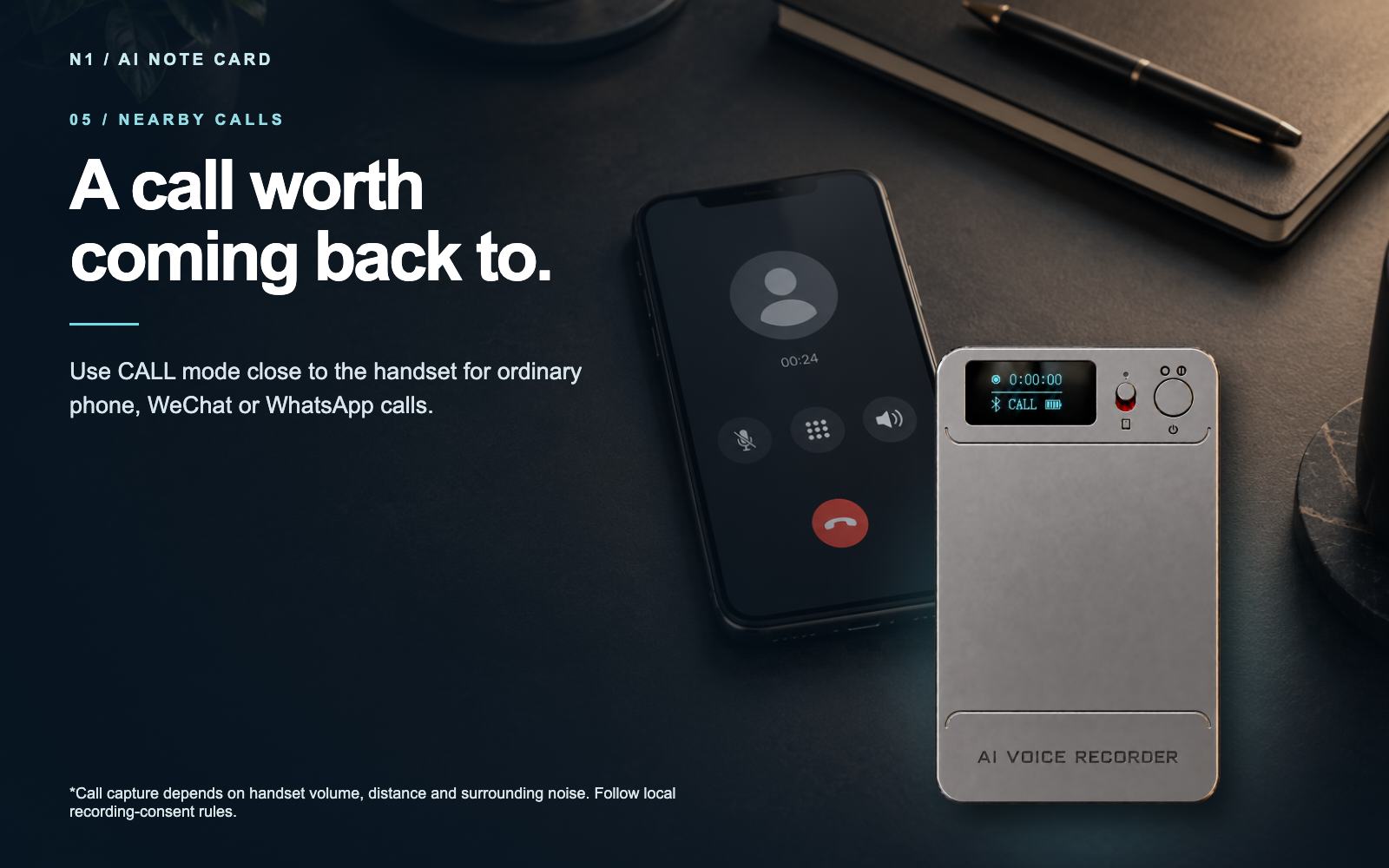
CALL mode for a nearby conversation
Place N1 close to the handset for an ordinary mobile call or a WeChat or WhatsApp call. Speakerphone is not always required when the recorder is close enough. Results depend on handset volume, placement and surrounding noise. Inform participants and follow applicable recording-consent rules.
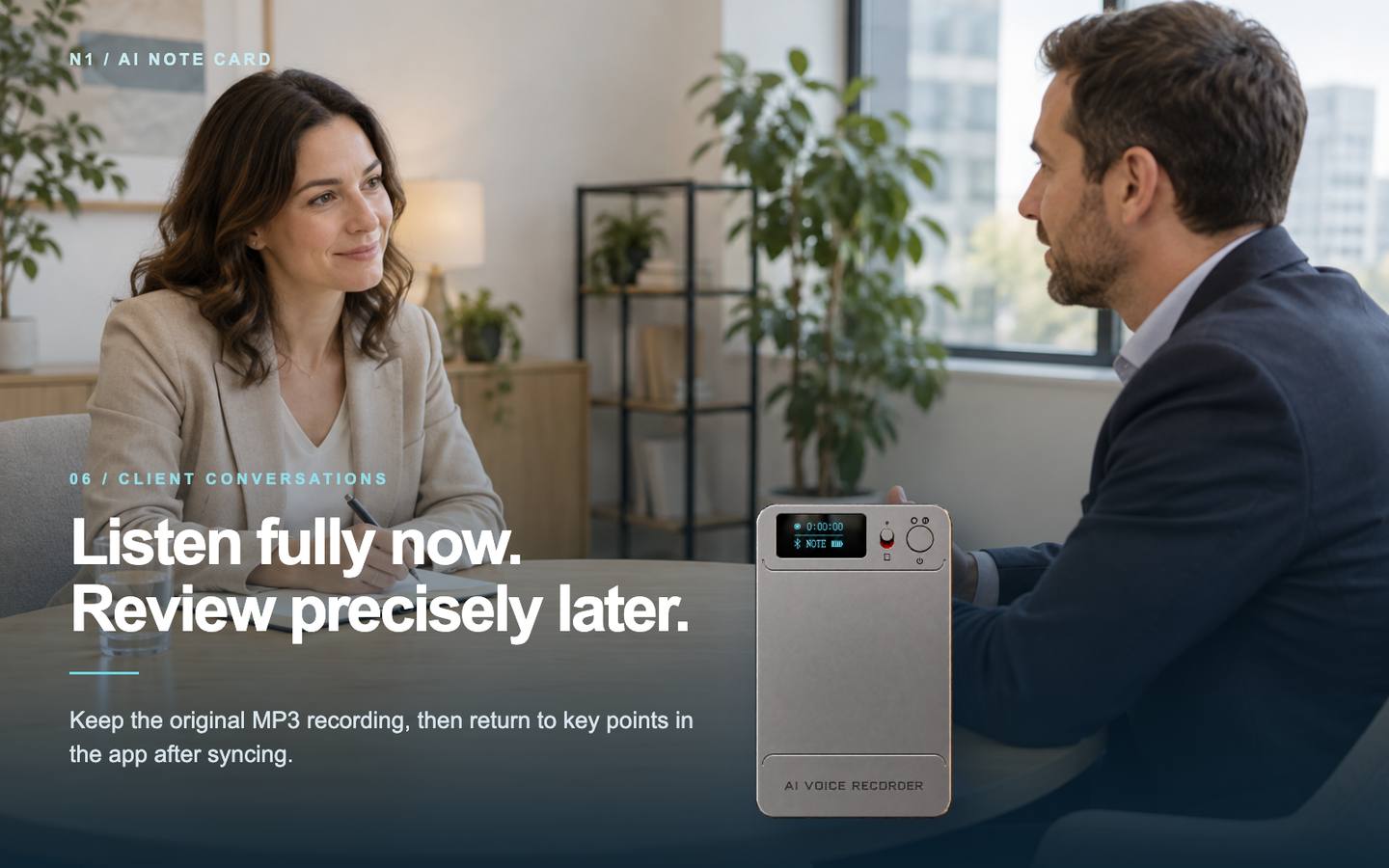
Listen fully now. Return to the details later.
Revisit decisions after a meeting, check a detail from a nearby call or review an interview without relying only on handwritten notes. The original audio remains available as an MP3 file.
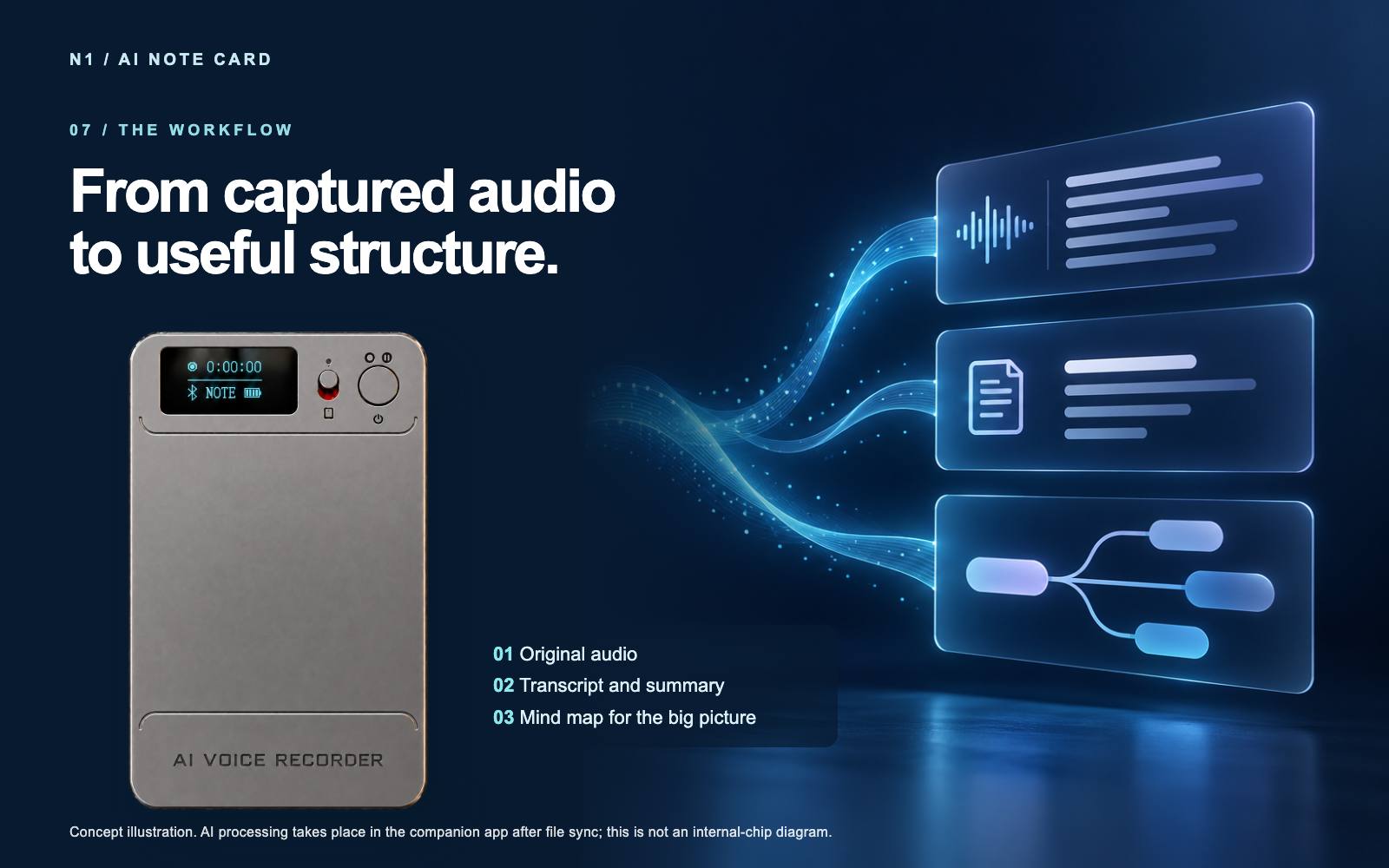
From recorded audio to a clearer record
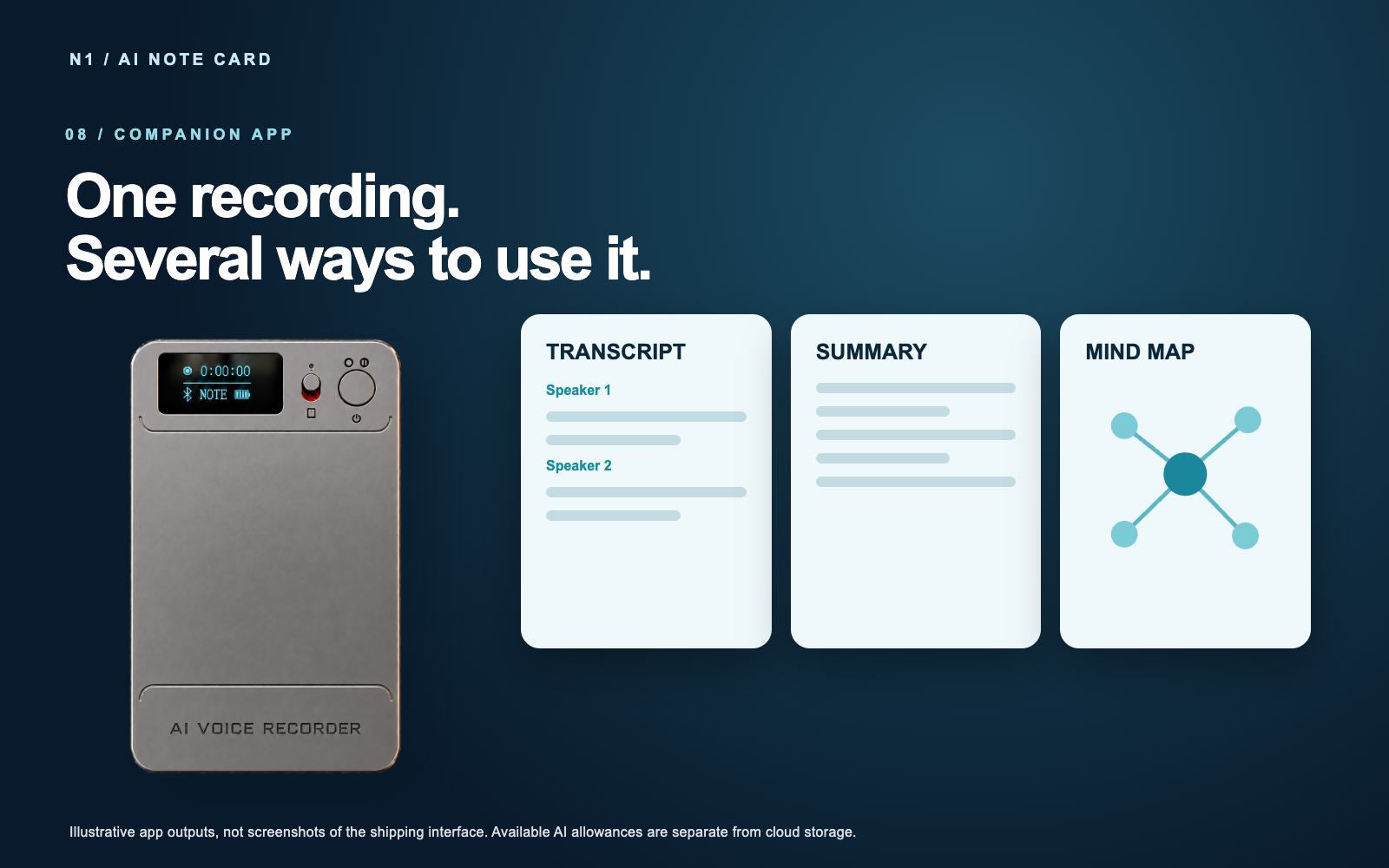
N1 captures the original sound. After you transfer the file to the app, AI tools can turn it into text, a summary and a mind map. These are app processing functions; the illustration shows the workflow and does not represent a verified AI chip inside the recorder.
Choose the output the task needs
The companion app supports transcription, summaries, mind maps, speaker separation, text editing and search, simultaneous interpretation, image translation and audio import. The included starting allowance is 120 transcription minutes and 60 images for image translation. Transcription, summary and mind-map actions use allowance separately. The pictured app panels are illustrations.
Free cloud storage for synced recordings
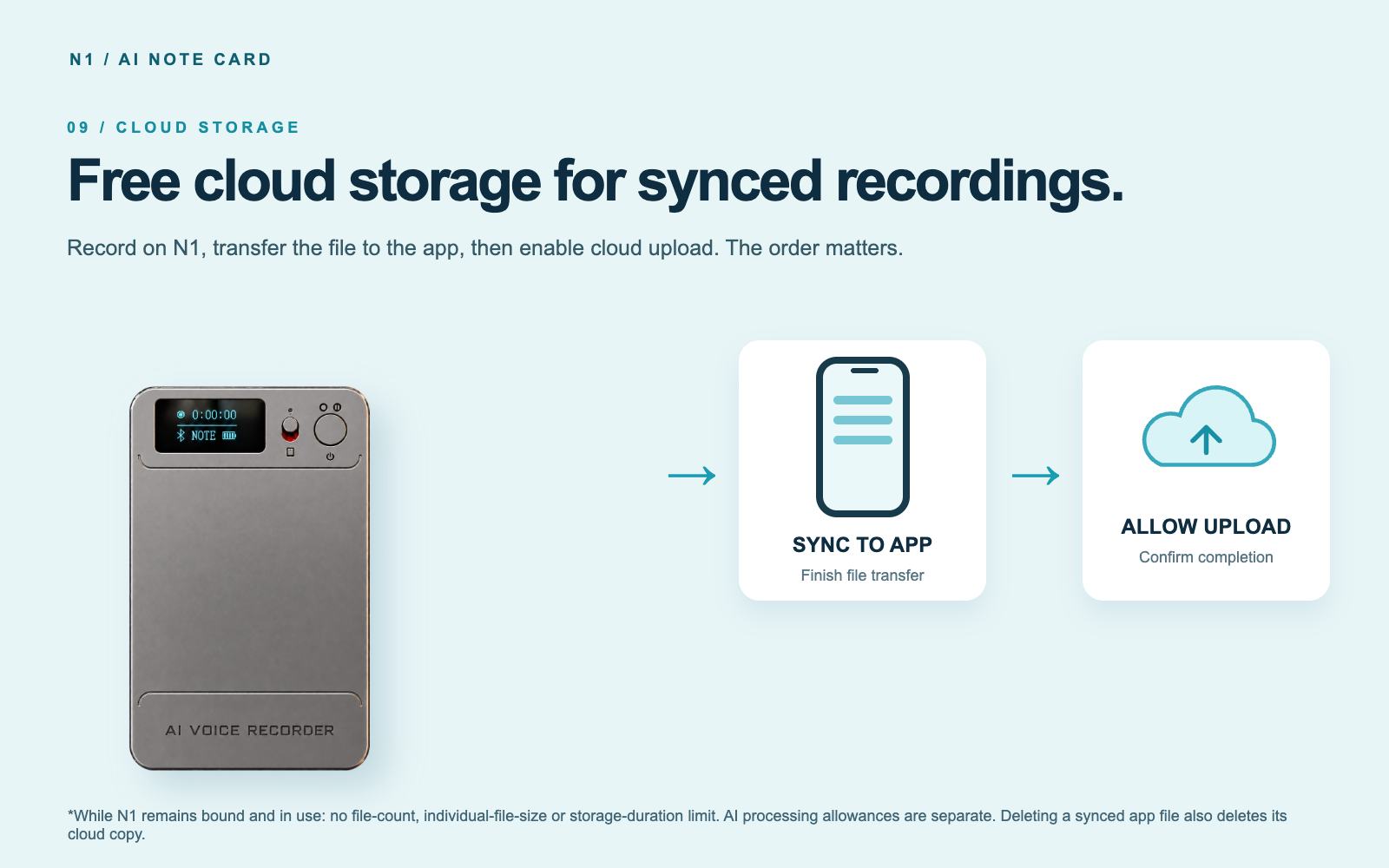
Cloud storage has no file-count, individual-file-size or storage-duration limit for uploaded recordings while N1 remains bound and in use. No separate cloud-storage fee applies under those conditions. AI processing allowances are separate. To create a cloud copy, finish transferring the recording from N1 to the app, turn on Allow Upload in cloud settings and confirm that upload finishes. A file on N1 is not yet a cloud backup. Deleting a synced file in the app also deletes its cloud copy; export anything you need to keep first.
N1 essentials
Model: N1 AI Note Card. Recording modes: NOTE and CALL. Independent recording: physical switch, with no phone connection required. Original files:MP3.App: file transfer, connected recording control and AI tools. Cloud: upload after app transfer and Allow Upload.
Keep the original MP3
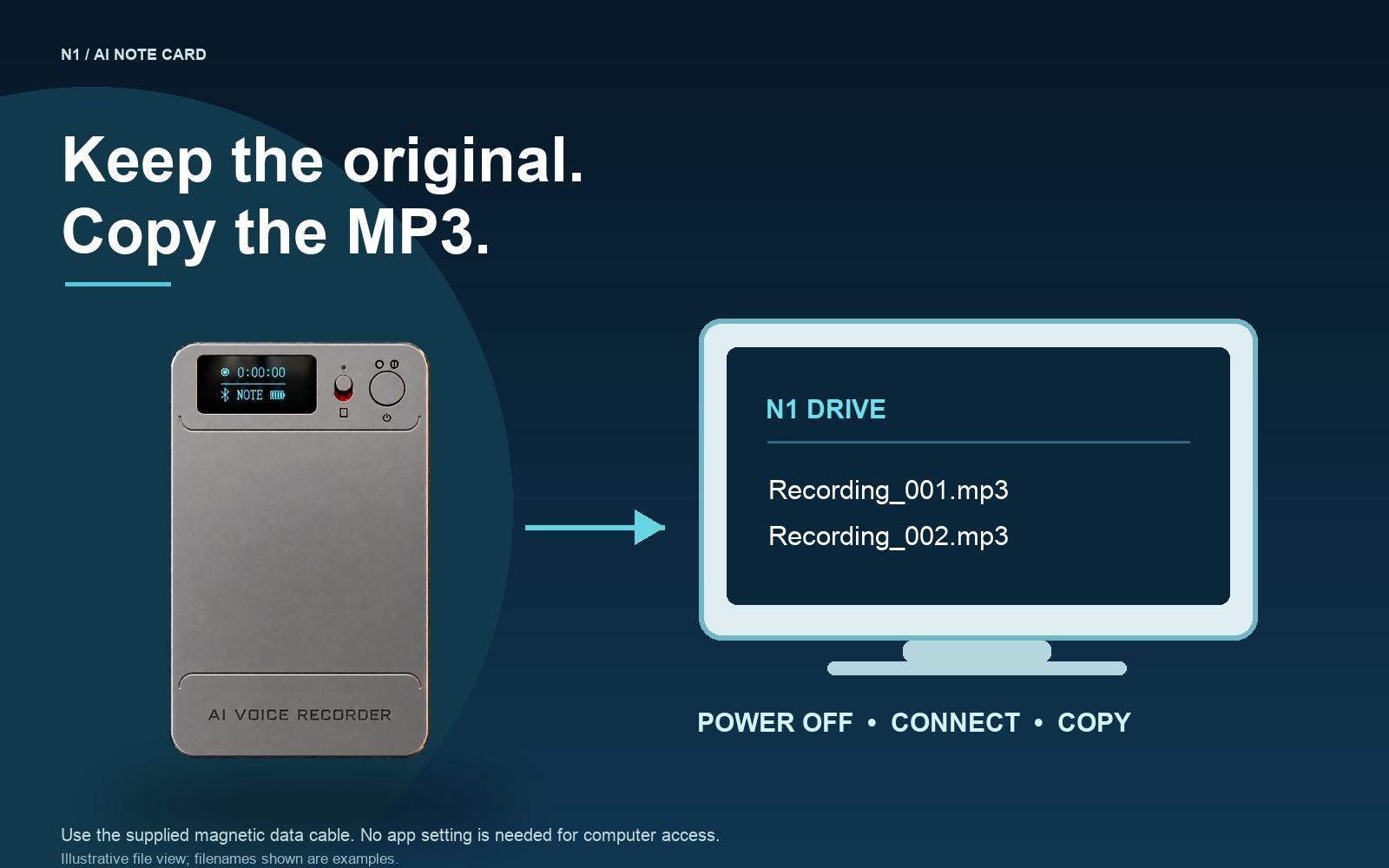
For direct computer access, power off N1 and connect it with the supplied magnetic USB-C data cable. Open the recorder as a drive and copy the MP3 files. Use the supplied USB-C-to-USB-A adapter where the computer needs USB-A. No app setting is required.
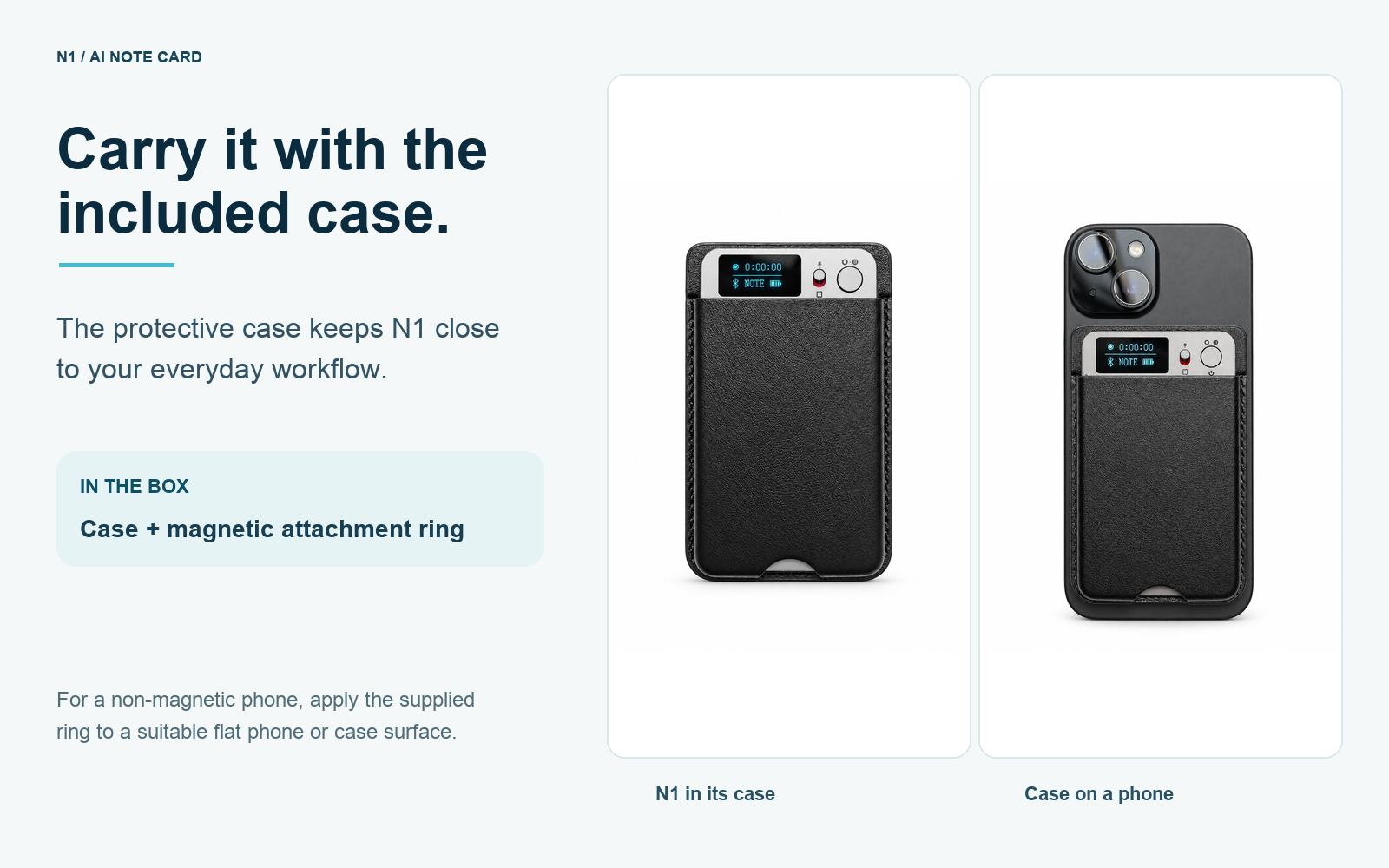
Carry N1 with the included case
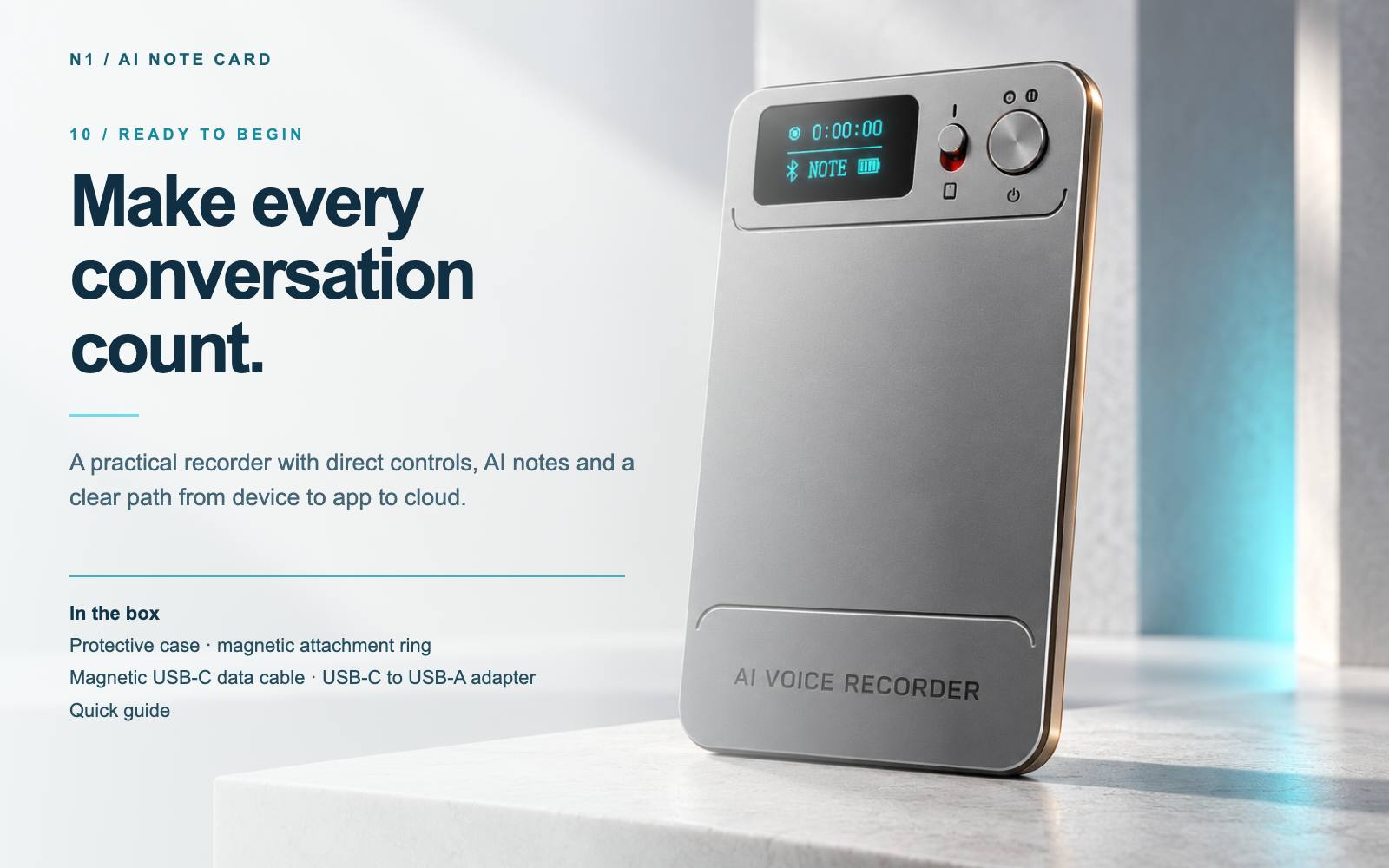
The supplied case holds the recorder and can attach magnetically to a suitable phone or phone case. An included magnetic attachment ring can be placed on a suitable flat surface on a non-magnetic phone or case. Check the attachment before carrying the device. In the box: N1 recorder, protective case, magnetic attachment ring, magnetic USB-C data cable, USB-C-to-USB-A adapter and quick guide.
Frequently asked questions
Can N1 record without a phone?
Yes. Start with the physical switch, then connect to the app later to transfer the completed recording and use AI tools.
How are NOTE and CALL modes different?
NOTE is for surrounding voices in a room. CALL is for a call close to the handset. Choose the mode and placement for the situation.
Does a recording on N1 automatically reach the cloud?
No. Transfer the recording to the app, enable Allow Upload and confirm that upload completes.
Is cloud storage free? Are AI tools unlimited too?
Cloud storage for uploaded recordings is free while N1 remains bound and in use, with no file-count, individual-file-size or storage-duration limit. AI processing has a separate allowance.
Can I copy recordings to a computer?
Yes. Power off N1, connect the supplied magnetic data cable and copy MP3 files from the recorder drive.
What happens if I delete a synced recording in the app?
Its cloud copy is also deleted. Export or download a separate copy first if you need it.
Request N1 product information
Bring a clearer record to your next conversation. Contact our team for N1 product details, current configuration and approved marketing materials.
Send Message
Comprehensive score