AI Voice Recorder vs Smartphone Recording for Business Meetings
A phone can record a meeting, so why carry a separate recorder? For occasional notes, the phone in your pocket may be enough. A business buyer should compare the complete job: capture, original-file access, sharing and follow-up notes. The choice depends on the team's workflow, not a universal sound-quality claim.
Start with the meeting job
Define the meeting: one-to-one interview, small group, training session or larger table. Will the host also use the phone for an agenda or presentation? Who needs the original afterwards? Obtain consent and follow local rules and your organization's policy.
A smartphone voice memo is a sensible first option when one person handles the recording, the phone can sit near speakers and the file fits that person's workflow. Some phone apps also offer transcription or other AI tools. Test the actual phone and app; controls, export, AI access and behavior during other phone activity vary by setup.
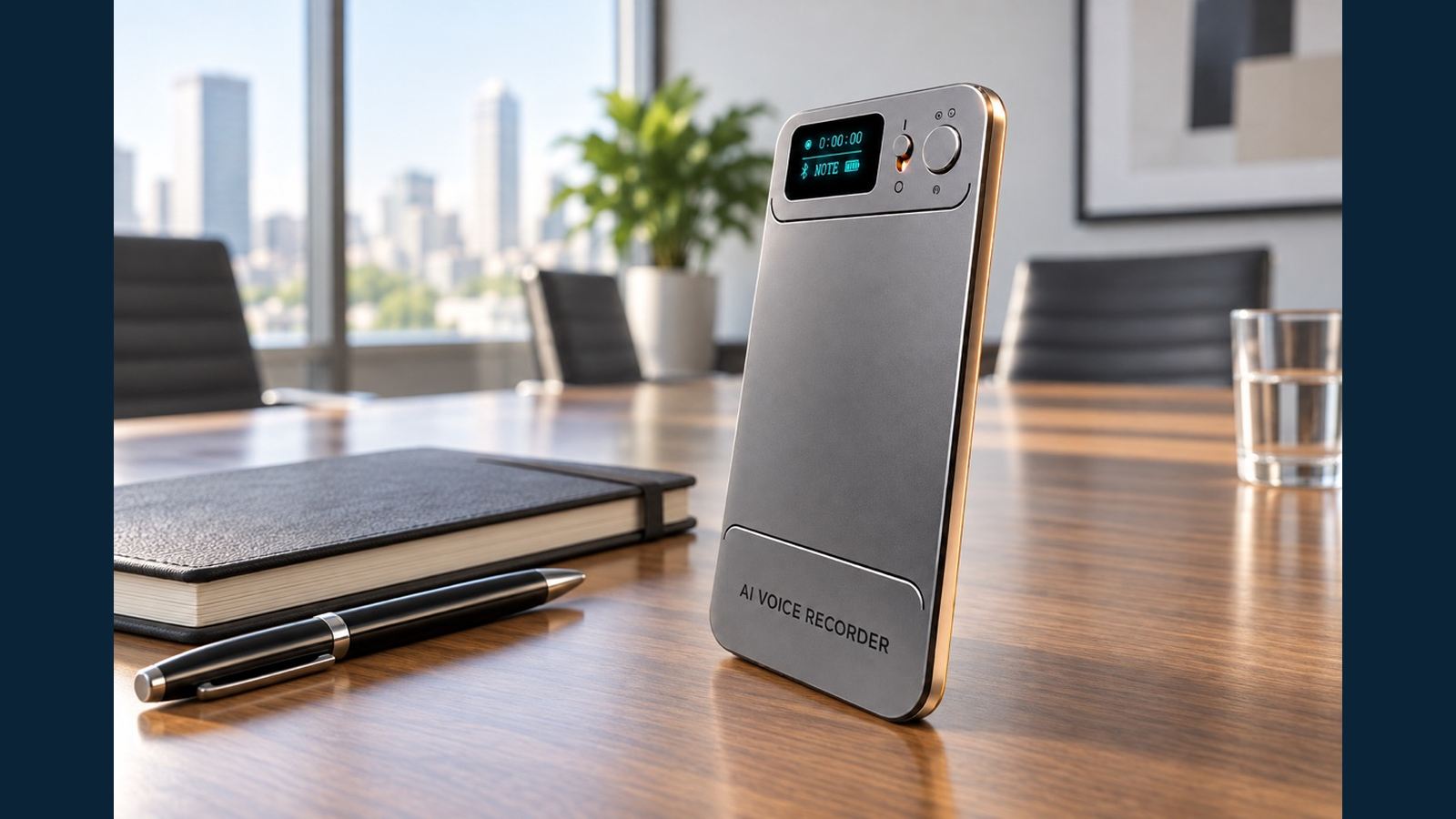
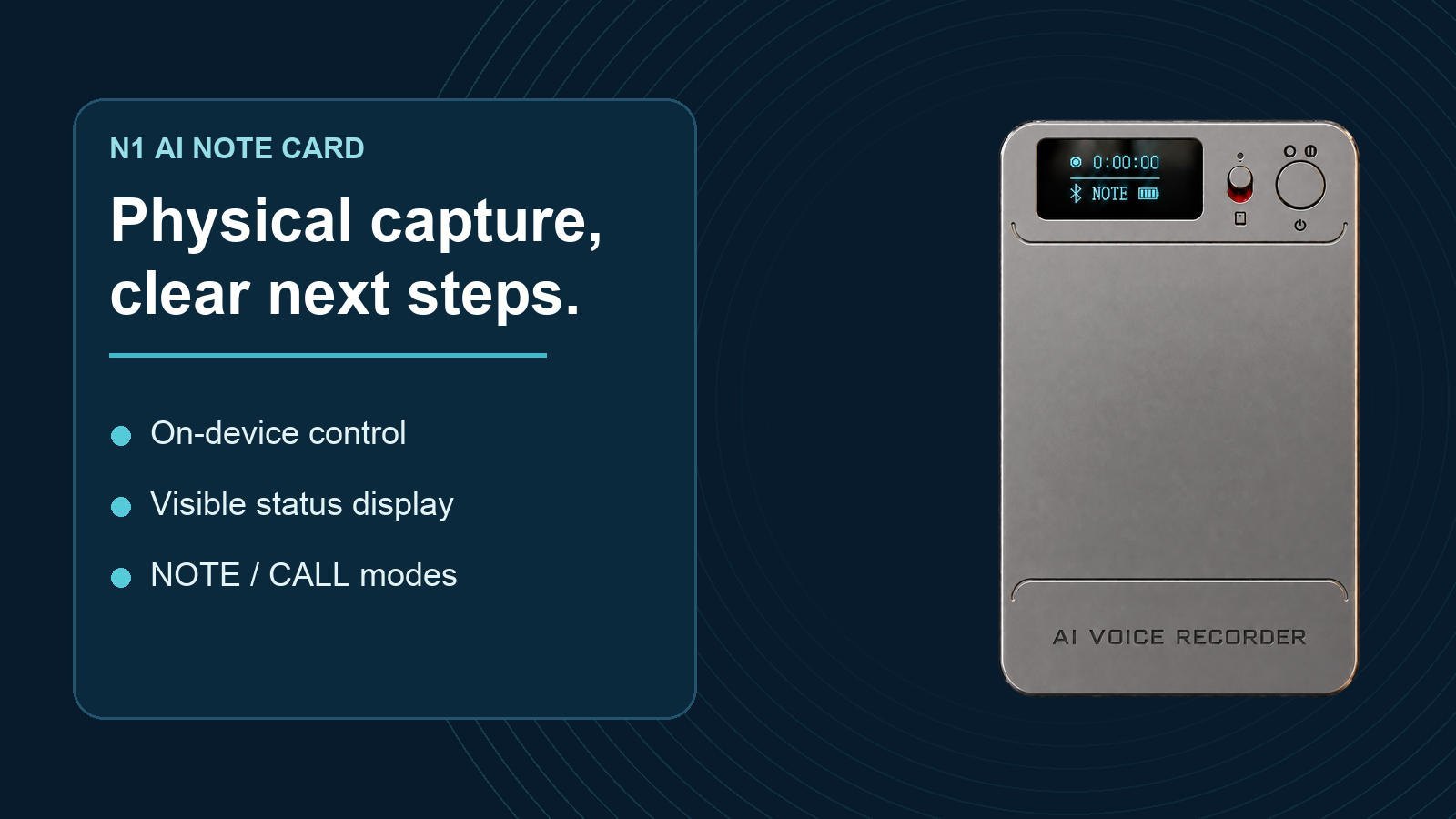
The N1 AI Note Card has a physical recording switch. It captures an original MP3 in NOTE mode without a phone connection. Later, the user can transfer the file to the app for transcription, summary and mind-map tools. An AI output cannot repair a word that was unclear in the original.
Compare workflows, not slogans
| Buyer question | Smartphone recording | N1 AI Note Card |
|---|---|---|
| What starts the capture? | The recording app and its controls on the chosen phone. | A physical recording switch on the device; a phone connection is not required to start. |
| What happens while the phone is needed elsewhere? | Test the chosen app, notifications and multitasking behavior in the intended setup. | The recorder continues its own capture workflow while the phone serves other work. |
| Where is the original? | Check the app's export path and file format on the chosen phone. | N1 stores an original MP3; it can also be copied from the powered-off device with the supplied magnetic data cable. |
| How are notes made? | Depends on the phone app and any tools the buyer selects. | Transfer the file to N1's app, then choose a transcript, summary or mind map using the applicable AI allowance. |
| What is the extra item to manage? | No separate recorder, but the recording uses the same phone as other tasks. | A separate device, cable and app workflow must be explained to users. |
These are N1's documented steps and questions to test on the buyer's phone, not laboratory audio results.
Where a dedicated recorder can earn its place

N1 separates capture from the host's phone. The host can start on the card and use the phone for an agenda, video link or messages. A disconnected phone does not prevent N1 from starting a recording.
Placement matters. Use NOTE mode for voices around the table and place N1 where speakers can be heard. Table size, speaking volume and background noise change the result. Test a nearby handset call in CALL mode separately; a meeting sample does not prove call performance. See the NOTE versus CALL placement guide.
Afterwards, N1 can transfer the completed file to the app. For computer access, power it off, connect the supplied magnetic USB-C data cable and copy the MP3 from its drive. Use the USB-C-to-USB-A adapter when needed. The MP3 export guide covers this path. A team with a tested, approved phone export process may not need another device.
Run a controlled sample test
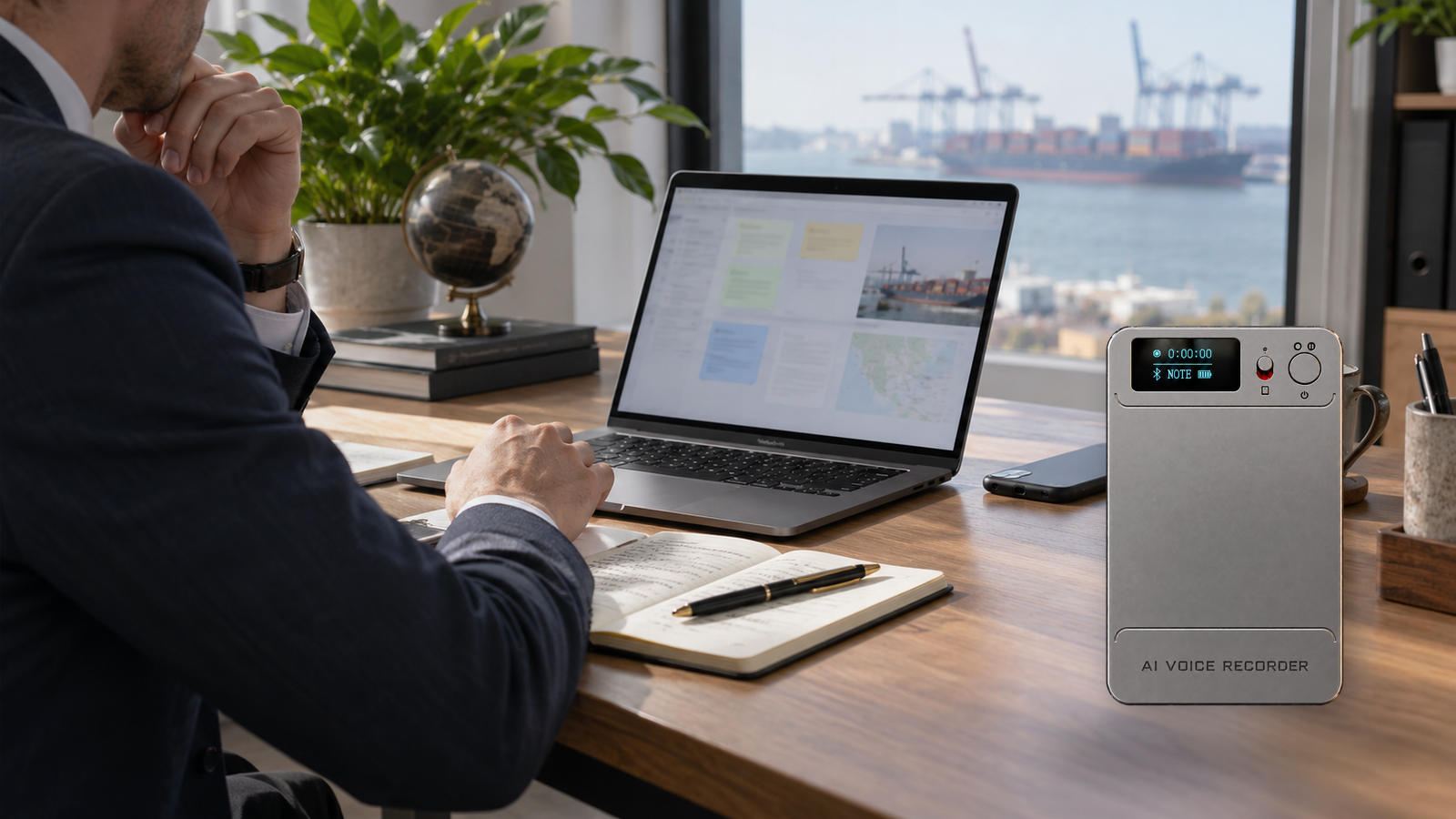
Use the same speakers, room and script for both devices. If simultaneous recording changes placement, run two clips with positions swapped. Include names, numbers and an action item. Use ordinary volume and realistic background noise. Keep both originals.
Listen before reading a transcript. Can a reviewer identify the action, owner and date? Then count the steps needed to send the original to a colleague. If AI notes matter, check names and figures against the audio. A tidy summary does not prove the source was complete.
Record phone model and app, room, placement, file format, export steps and interruptions. Include who can access the resulting file under the team's data policy. Score each workflow against the buyer's required outcome. A distributor can show the setup and original files instead of claiming unmeasured audio superiority.
Decide by the customer's working pattern
Choose phone-first when recording is occasional, one user owns the files and the tested app meets sharing needs. Consider N1 for frequent meetings, when the phone must remain free, or when physical capture and a defined MP3-to-app workflow matter. Set rules for who records, stores and deletes files.
N1's cloud route requires device-to-app transfer and Allow Upload to be enabled. A file still on the card is not a cloud copy. Cloud storage and AI allowance are separate. Distributors planning a wider assortment can compare Eleshine's product range and review the company profile alongside the N1 sample.
For an N1 sample discussion, contact Eleshine with your meeting scenario, target users and required file handoff.
FAQ
Is a dedicated recorder always better than a smartphone for meetings?
No. A phone may be sufficient when its tested recording, export and sharing workflow meets the buyer's needs. Compare the original audio and handoff steps in the real meeting setup.
Can N1 start recording when it is not connected to a phone?
Yes. Use the physical recording switch in NOTE mode. Connect later to transfer the completed file to the app.
Does N1 automatically turn a recording into an AI summary?
No. Record first, transfer the completed file to the app, then choose the relevant AI action. Review important details against the original audio.
How can a team keep an independent copy of an N1 meeting?
Power N1 off, connect the supplied magnetic USB-C data cable to a computer, and copy the original MP3 from its drive. Use the supplied adapter if the computer needs USB-A.
Does an N1 recording automatically upload to the cloud?
No. Transfer it to the app, enable Allow Upload in cloud settings and confirm that upload completes.
Transferring an AI Recorder to a New Account: Files and Entitlements