
From Voice Recording to Useful Notes: The N1 AI Note Card Workflow
The useful output of a meeting is rarely the recording by itself. A buyer needs to hear a disputed detail, find an agreed action, and share the right points with colleagues. The N1 AI Note Card separates those jobs into understandable stages. The device captures audio independently. A completed recording can be read as an original MP3 or transferred to the companion app. In the app, the user chooses AI tools such as transcription, summary and mind map. Cloud upload is a further step after app transfer, not something that happens merely because Record was pressed.
That distinction makes the workflow easier to explain to end users and easier for a distributor to demonstrate honestly.
Stage 1: capture the conversation on N1
N1 records without a live phone connection when its physical recording control is used. For a meeting or interview, choose NOTE mode and position the device where the people you need to hear are within the practical recording area. For a nearby phone call, choose CALL mode and place the device close to the handset. A regular call, WhatsApp call or WeChat call may be captured this way when the sound is close enough, but the result still depends on the handset’s volume, distance and the room. Recording laws and participant consent should be checked before use.
The user can also control recording from the app when N1 is connected. The device status screen gives a visible check during use. A normal stop, button power-off or automatic shutdown caused by low battery saves the recording. Full storage is a different condition: users should review remaining capacity and transfer important files rather than treating the card as an unlimited local archive. The AI voice recorder category places N1 in the broader product range.
Stage 2: decide what to do with the original MP3
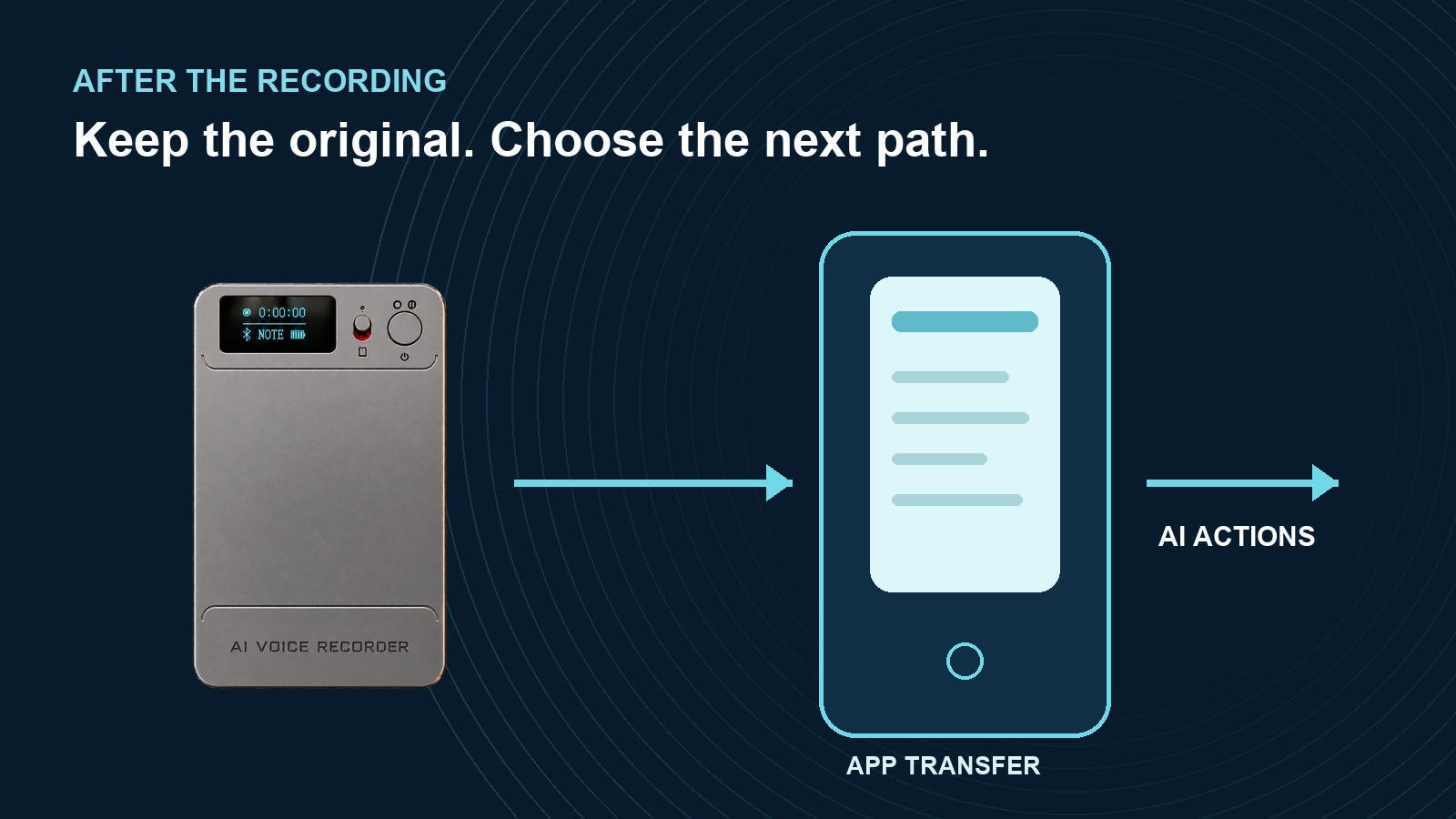
Device recording and app transfer are separate stages.
After capture, the original file has value independent of any AI result. It lets someone replay the exact phrasing of a commitment or verify a name that transcription misunderstood. N1 records in MP3 format. To copy the file to a computer, power the device off and connect it with the supplied magnetic data cable. The included USB-C to USB-A adapter serves computers with a USB-A port. A team can keep its own approved archive of original audio through that route.
The second route is transfer into the companion app. That is the point at which the recording becomes available for app-based organization and AI actions. A cloud icon should not be used as shorthand for this stage: transfer to the app and upload to the cloud are two separate events.
Stage 3: turn a file into a working note
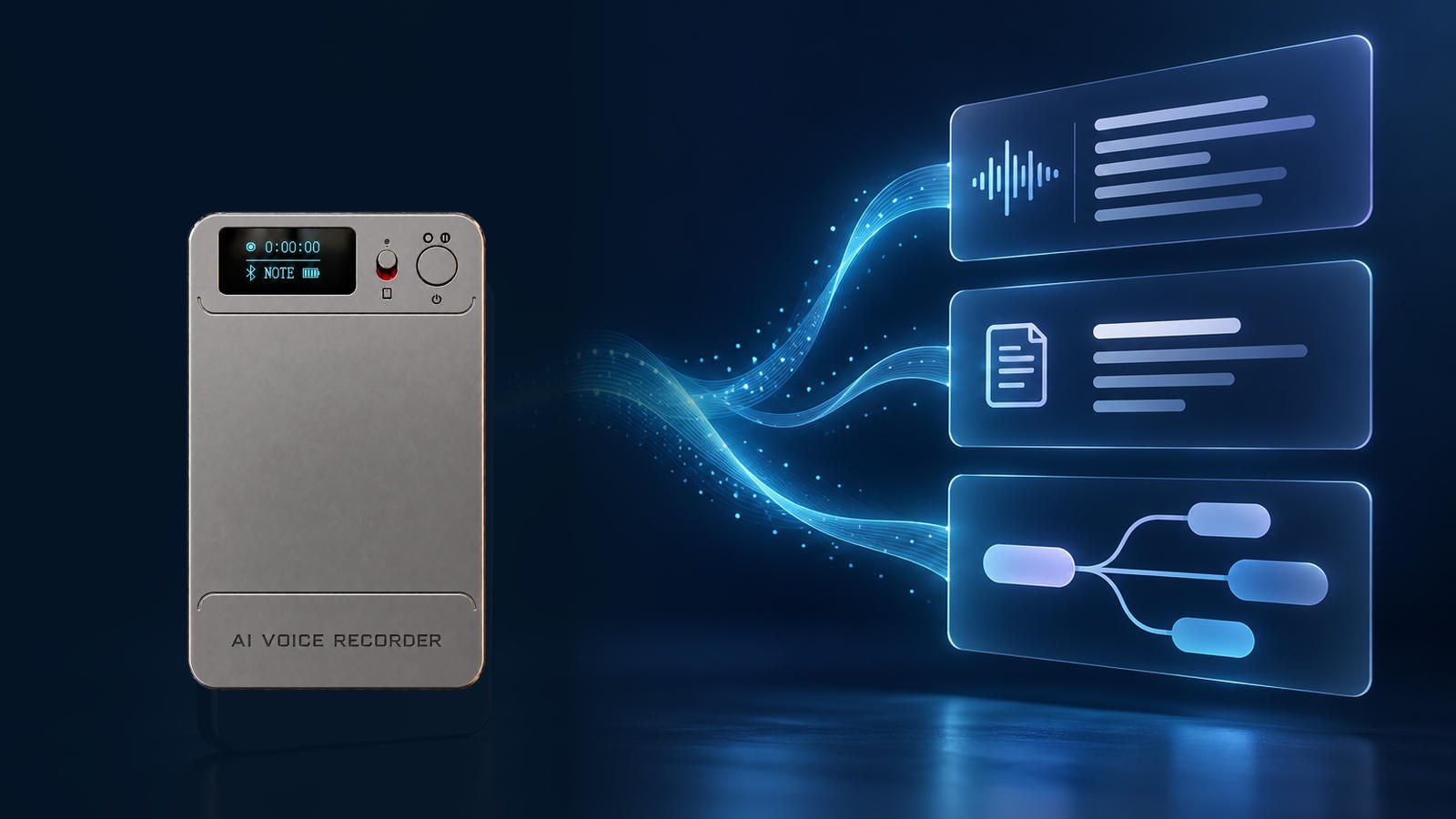
Choose the AI output that fits the conversation; verify important details against the MP3.
Different conversations need different outputs. A transcript is useful when an exact phrase matters. A summary is useful when someone needs the decisions and next steps quickly. A mind map helps a reader see how topics connect. N1’s companion app offers these actions after a file is transferred. The app also includes functions such as speaker separation, editing and search, subject to the version and entitlement shown in the app.
A practical team habit is to keep the audio and AI output together. The transcript can be searched, but a critical quote or number should be checked against the MP3. A summary can help draft follow-up notes, but an employee should confirm the owner and deadline of each action before sharing it. For a client interview, a mind map can expose recurring topics; it does not replace the participant’s actual words.
AI processing allowance is separate from cloud storage. The included starting allowance is 120 transcription minutes and 60 images for image translation; transcription, summary and mind-map actions use allowance separately. Buyers should check the current app entitlement screen before describing that balance as an unlimited AI plan. For a capture-focused comparison, see our meeting and nearby-call evaluation guide.
Stage 4: upload to cloud only after app sync
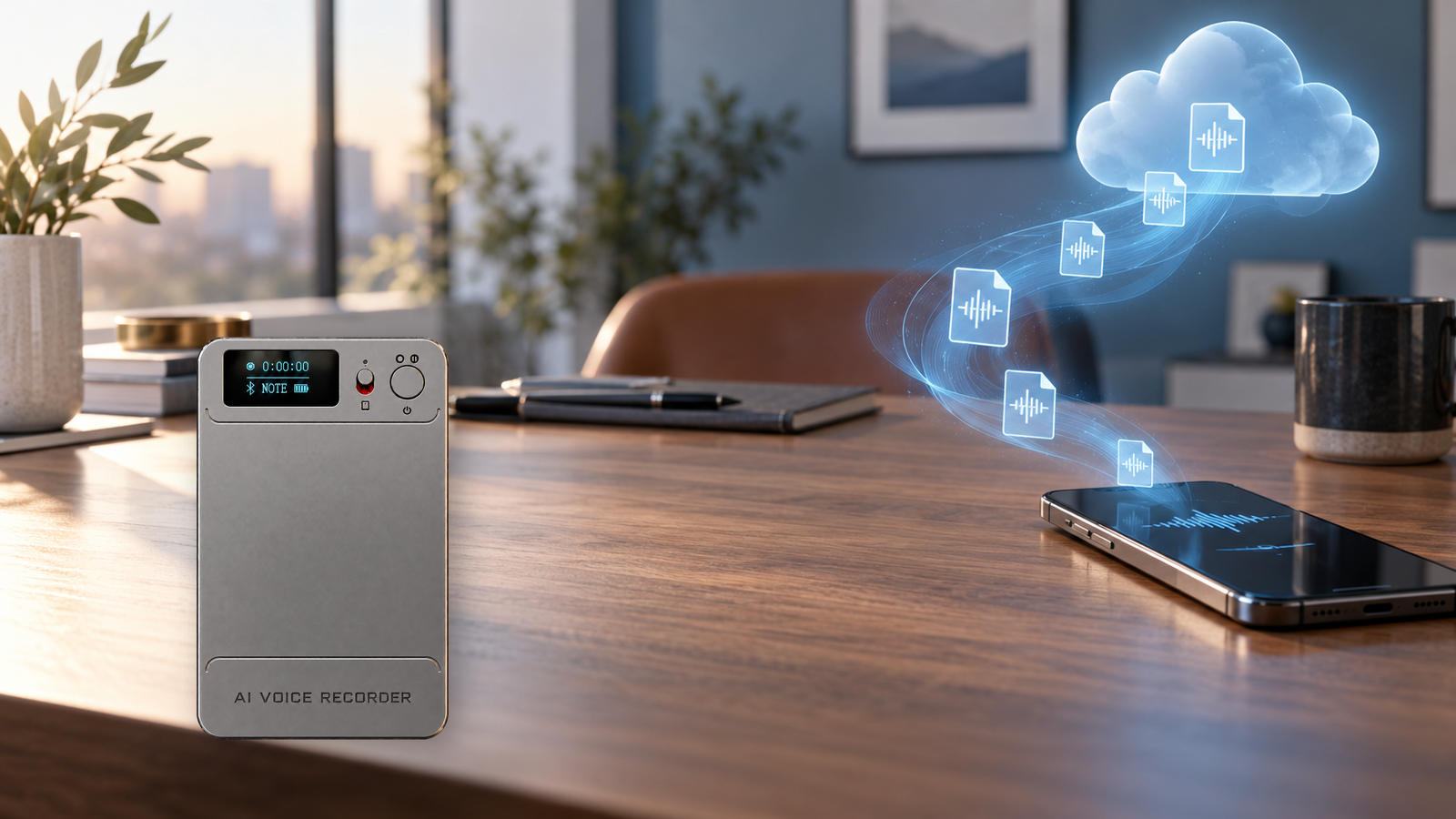
Cloud upload follows app transfer and the Allow Upload setting.
N1’s cloud path is explicit: record on the device, transfer the completed file to the app, turn on Allow Upload in cloud settings, and confirm that the upload finishes. Under the current product rule confirmed by the engineering discussion, cloud storage of uploaded recordings is free while the device stays bound and in use. There is no stated limit on the number of files, the size of an individual file or how long an uploaded file can remain stored under those conditions. Users can download cloud files.
This is valuable for a team that regularly returns to old conversations, but the conditions matter. A file left only on N1 has not been backed up to the cloud. A file visible in the app may still be waiting for cloud upload. If a synced file is deleted in the app, its cloud copy is deleted as well. Export an independent copy before deleting or unbinding the device. Purchased membership rights follow the device under the confirmed binding rule; keep file retention and AI entitlement questions separate.
A four-state file checklist for distributors
| File state | What the user can verify | What it does not yet prove |
|---|---|---|
| On N1 | Original recording plays on the device or can be copied as MP3 | App transfer or cloud backup |
| In the app | Completed file appears after transfer | AI processing or completed cloud upload |
| AI output ready | Transcript, summary or mind map is available for review | That a critical quote is accurate without checking the audio |
| Cloud upload complete | Uploaded file is visible after Allow Upload and sync | A separate archive independent of app deletion |
This distinction makes support questions easier to diagnose: ask which state the user can actually see before promising that a recording is backed up.
A repeatable workflow for busy teams
Consider a buyer meeting that produces five decisions and three open questions. One person starts N1 in NOTE mode and places it on the table with everyone’s knowledge. After the meeting, the owner checks that the MP3 plays, transfers it to the app, generates a transcript and asks for a summary. The team verifies the decisions against the audio before circulating the note. If its record policy requires a separate archive, it exports the original MP3. If cloud storage is wanted, the owner enables upload and confirms the file is actually present there.
The same process works for a nearby call, but start with CALL mode and a handset placement test. Neither mode removes the need to listen to a sample in the real environment. This workflow is what makes N1 more than a recording button: it connects the original source to a practical review path without asking the user to process every detail during the conversation.
For a distributor demonstration, show the four stages in order and let the buyer inspect the status at each one. That makes the N1 proposition concrete: capture independently, keep the MP3, choose the app output you need, and confirm cloud upload rather than assuming it happened. Compare related options in Eleshine's product range and check our company profile for supplier context. Then contact our team for current N1 information and a sample workflow demonstration for your most common use case.
FAQ
Does N1 need a phone to start recording?
No. Its physical control can start recording without a phone connection. The app becomes relevant when the user chooses to control a connected device or transfer a completed file.
Is the recording automatically transcribed on the device?
No such on-device AI processing is claimed. Transfer the completed recording to the companion app, then select the desired AI action.
Is free cloud storage the same as unlimited AI transcription?
No. Cloud storage for uploaded recordings and AI processing allowance are separate. Check the current app entitlement for transcription, summary and mind-map use.
When does a recording reach the cloud?
After the device file is transferred to the app, Allow Upload is enabled and the upload completes. A recording on the device alone is not a cloud copy.
What should a user do before deleting a synced file or unbinding N1?
Export any independent copy that must be kept. Deleting a synced file in the app also deletes its cloud copy. Do not rely on the device or cloud as the sole archive when transferring an account or device.
Choosing an AI Voice Recorder for Meetings and Nearby Calls: What Business Buyers Should Test