Choosing an AI Voice Recorder for Meetings and Nearby Calls: What Business Buyers Should Test
An AI voice recorder is useful only when it captures the conversation you need and lets you do something reliable with the file afterward. For a business buyer, the key question is broader than “Does it make a transcript?” Test how recording starts, where the device sits, how the original audio is retrieved, and which steps turn that audio into a usable note. The N1 AI Note Card follows that path: independent recording on the device, NOTE and CALL modes for different situations, and app tools for review after transfer.
Start with the real job: capture first, AI second
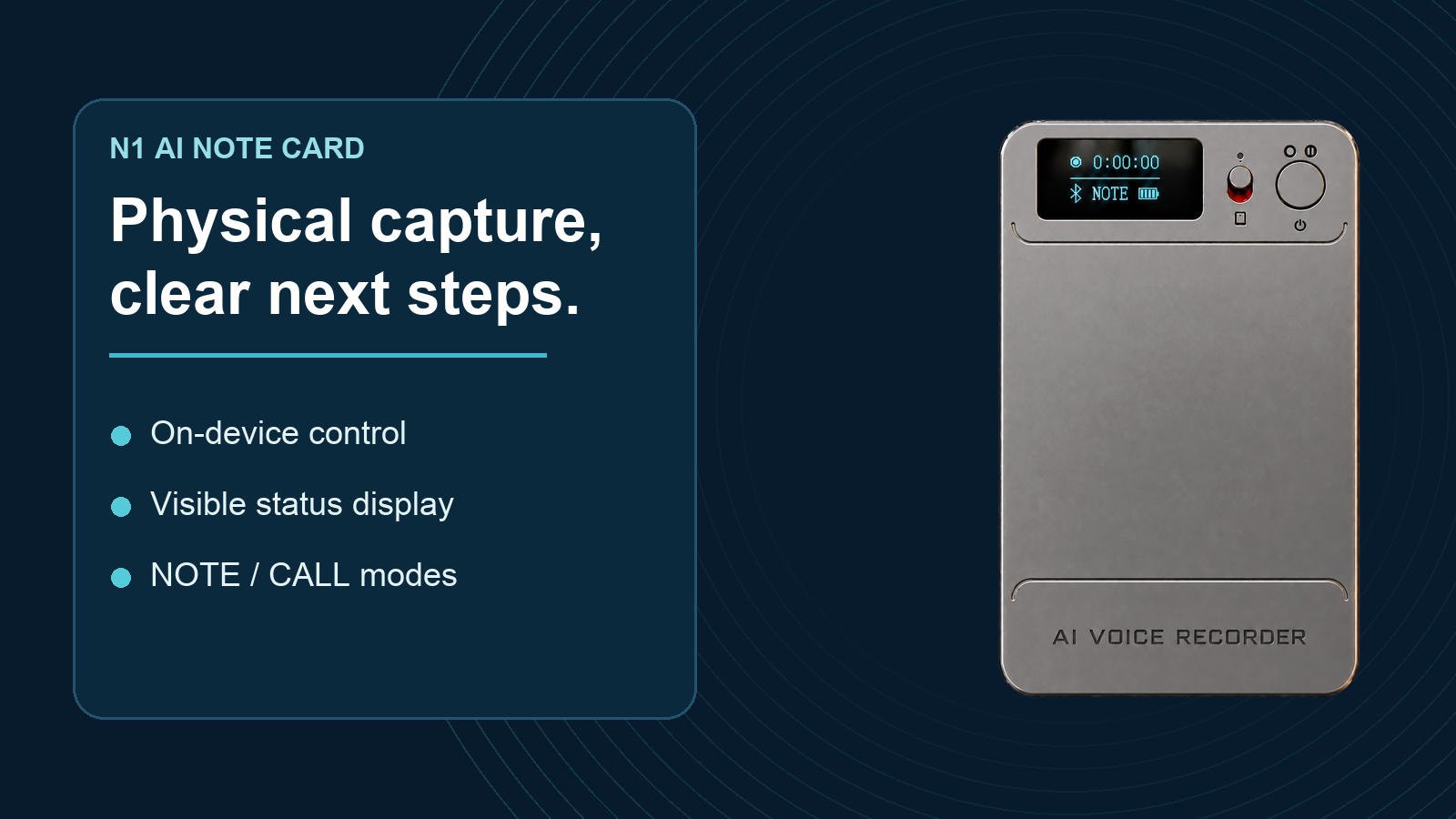
Physical recording controls let N1 capture before the app workflow begins.
In a client meeting, people change seats, interrupt one another and move between documents. On a nearby phone call, the source of sound is a handset, not a conference table. Those are different capture conditions. No summary can recover a name or number that the original audio did not pick up clearly.
This is why a short sample recording is a better first test than a feature-count comparison. Put the recorder where it would actually be used. Have several people speak at normal volume, then replay the original file before looking at any transcript. For a call, test the intended phone, call app, volume and placement. Obtain the participants’ consent and follow local recording rules.
N1 can start recording through its physical control without a phone connection. When connected, recording can also be controlled from the companion app. Its status display helps the user check the device during use. The practical value is simple: the meeting can be captured first, and app processing can happen later. Buyers comparing the wider AI voice recorder category should test these stages as separate capabilities.
Match the mode to the sound source

NOTE mode suits meetings and interviews; test real speaking positions.
N1 provides two recording modes. NOTE is intended for meetings, interviews and voices around a table. CALL is intended for a nearby handset during a regular phone call or an app call such as WhatsApp or WeChat. CALL does not mean that the recorder connects to those services or captures their digital audio directly; it records the nearby sound. The outcome depends on handset volume, distance and surrounding noise.
For a meeting demonstration, ask two or three people to speak from their usual seats. Let one person take notes or type, because keyboard and paper sounds are part of real work. Listen to the MP3 afterward and check whether important terms are distinguishable. If the room is large or noisy, repeat the test with a different placement instead of assuming a stated range will apply everywhere.
For a nearby call, place N1 close to the handset and try the exact calling setup your team uses. Test both sides of the conversation and check a quiet passage as well as a louder one. If speakerphone is off, close placement matters even more. Never promise a fixed result for every handset or call app without a sample from that combination.
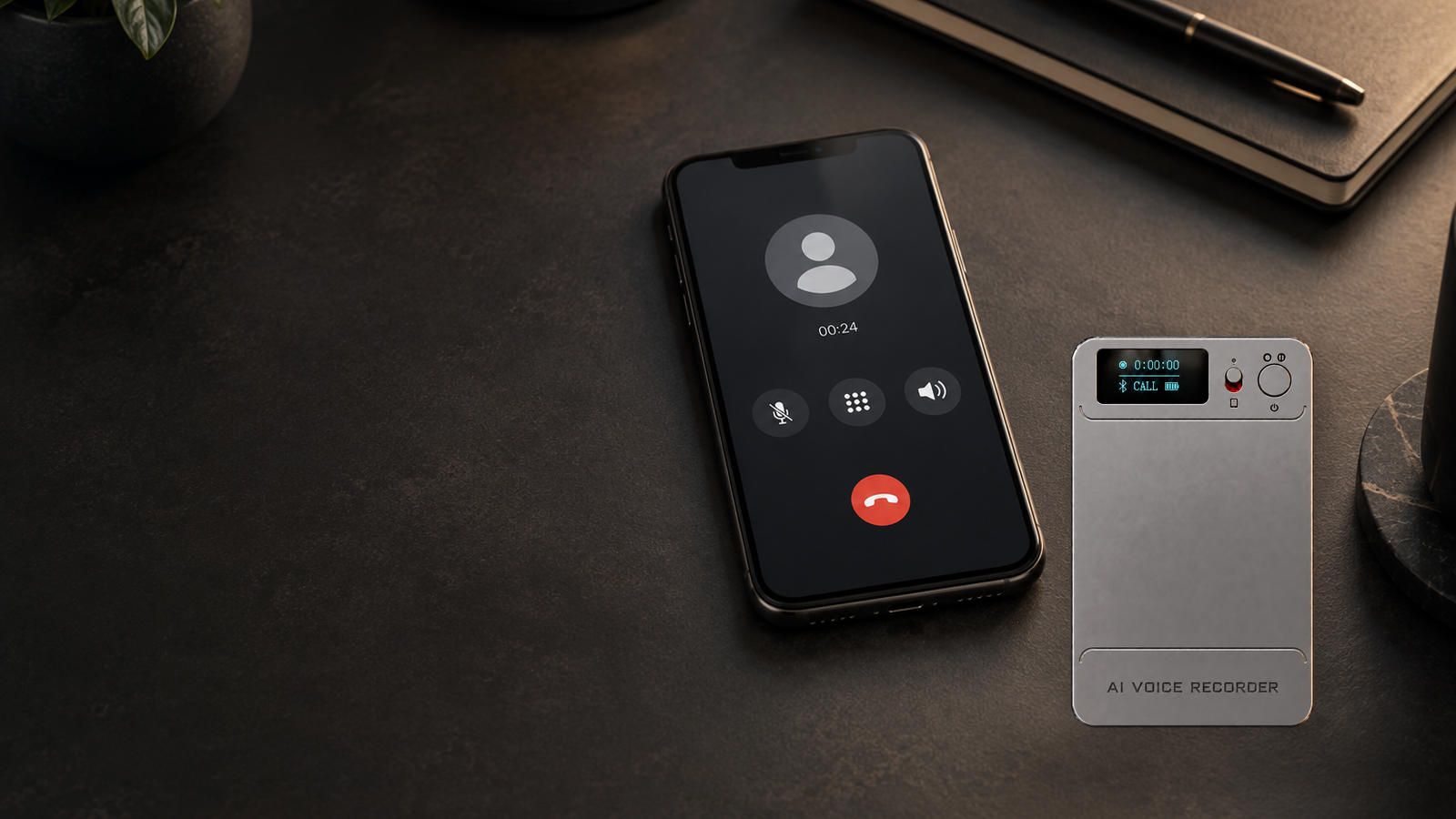
CALL mode records nearby handset sound; placement and volume affect the result.
Check the file path, not just the headline feature
The original recording matters. N1 saves its audio as an MP3 file. After stopping normally, switching the device off with its button, or an automatic low-battery shutdown, the recording is saved. To read files directly on a computer, power N1 off and connect the supplied magnetic data cable; the supplied USB-C to USB-A adapter supports a computer that needs USB-A. This gives a buyer a straightforward way to inspect and keep the source audio.
The companion app adds another route. Transfer a finished recording from N1 to the app, then select the AI action needed for that file, such as transcription, a summary or a mind map. These are app functions after transfer; they should not be presented as processing performed by a chip inside the recorder. The included starting allowance is 120 transcription minutes and 60 images for image translation. Transcription, summary and mind-map actions use allowance separately; a distributor should review the current entitlement screen with the final offer. Our recording-to-AI-notes workflow guide maps the stages in more detail.
For cloud storage, the order is important. A recording on the device is not yet a cloud copy. First transfer it to the app, enable Allow Upload in cloud settings, and confirm the upload has finished. Under the current N1 service rules confirmed for this product, cloud storage for synced recordings is free while the device remains bound and in use, with no file-count, individual-file-size or storage-duration limit. Deleting a synced file in the app also removes its cloud copy. Teams that need a separate archive should export it before deleting or unbinding a device.
A practical five-minute distributor demonstration
Ask the supplier to show one uninterrupted workflow rather than five separate feature screens:
- Start a short NOTE recording with the physical control, with the phone disconnected.
- Stop and replay the original MP3. Check names, numbers and softer voices.
- Transfer that completed file to the app and generate a transcript and a short summary.
- Show the cloud setting, upload status and the location of the finished file.
- Power the device off, connect the supplied data cable to a computer and open the original MP3.
Repeat the capture portion in CALL mode with a real handset. This sequence tells a buyer much more than a polished sample audio file: it exposes the effort between pressing Record and having an accessible note.
Use a sample scorecard before selecting a recorder
| Buyer check | Evidence to request | Retest when |
|---|---|---|
| Meeting capture | Original MP3 from normal speaking positions | A name, number or softer speaker is unclear |
| Nearby-call capture | Both sides of a call on the intended handset and app | Placement or volume changes the result |
| File access | App transfer and direct computer copy of the same recording | A step needs an undocumented setting |
| AI and cloud | Transcript checked against audio; completed upload shown in the app | A file is only on the device or app, not confirmed in cloud |
This is a comparison method, not a pass claim for every room or handset. Keep the sample MP3 and the test conditions with the evaluation record.
Questions buyers should ask before ordering
For a team or resale program, confirm the final shipped configuration and test report for continuous recording time, capacity, charging, supported app functions and language coverage. Ask how AI usage is counted and what happens to files and purchased entitlements when a device is transferred to another account. Check the final package contents against the approved packing list. Price, MOQ, lead time, warranty and regional compliance belong in current commercial documents, not an inferred product claim. Compare related devices in Eleshine's product range; our company profile gives context for a supplier discussion.
The result should be a purchase decision based on your actual meeting rooms, handsets and post-meeting workflow. N1’s strongest story is the combination of direct capture, clear NOTE/CALL selection, access to the original MP3, and a defined path into app notes and cloud storage. Contact Eleshine to request current N1 product information and a sample demonstration using a conversation similar to the one your customers most often need to remember.
FAQ
Can N1 record a meeting without a phone connected?
Yes. Start recording with the device’s physical control. Connect to the app later to transfer the completed recording and use AI tools.
What is the difference between NOTE and CALL mode?
NOTE is intended for voices around a meeting or interview. CALL is intended for a phone or app call heard from a nearby handset. Test placement and volume in the intended environment.
Does CALL mode capture WhatsApp audio directly from the phone?
No direct digital audio connection is claimed. N1 records sound near the handset, so the result depends on distance, handset volume and surrounding noise.
Can a buyer keep the original audio?
Yes. The original is an MP3 recording. With N1 powered off, use the supplied magnetic data cable to read it on a computer.
Does every device recording automatically appear in the cloud?
No. Transfer the finished file to the app, enable Allow Upload in cloud settings, and confirm that the upload completes.
From Voice Recording to Useful Notes: The N1 AI Note Card Workflow
How to Source a Low-Power WiFi Camera for Long-Standby Security Applications
