How do I set up the camera for motion detection?
2024-12-05
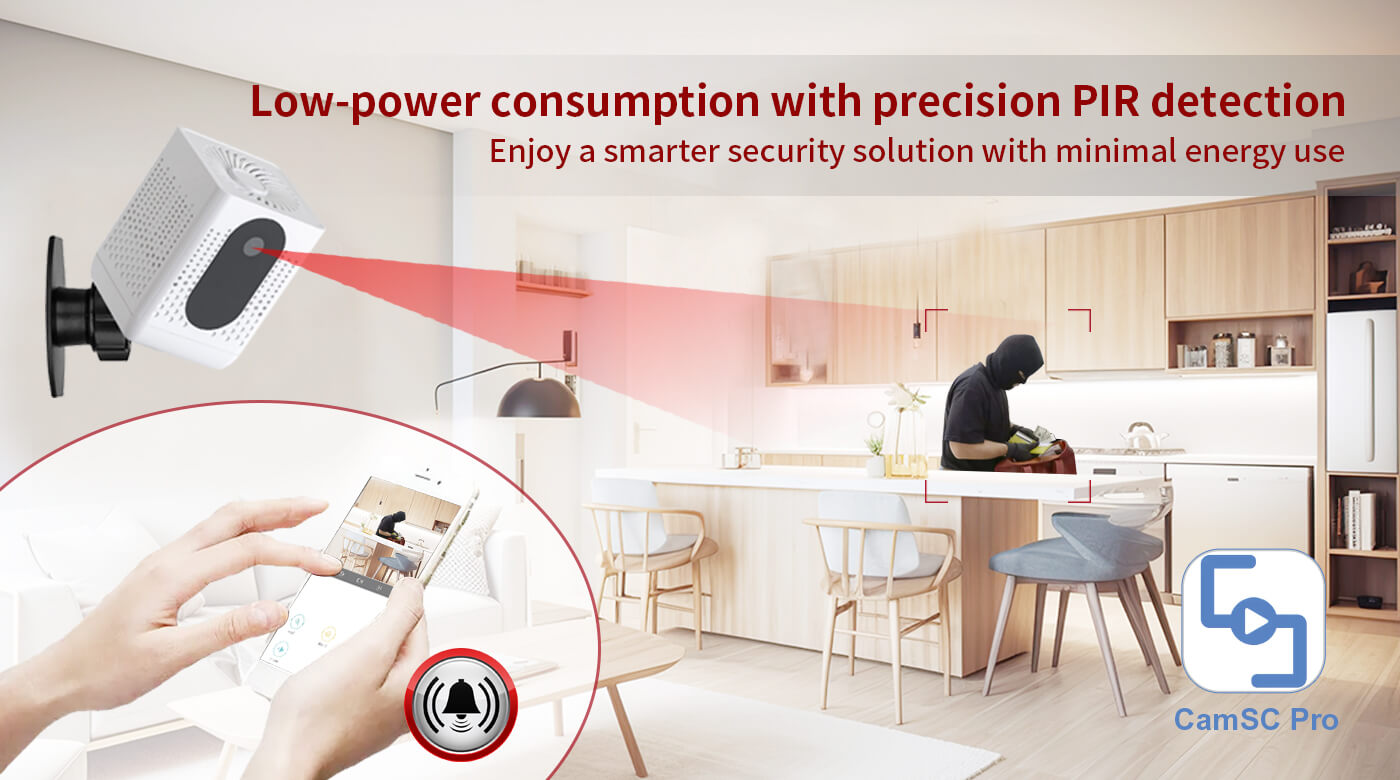
Setting up motion detection for the Mini WiFi Tuya Camera typically involves a few straightforward steps. While the exact process may vary slightly depending on the specific model and firmware, here's a general guide on how to set up motion detection using the Tuya app:
1.Install the Tuya App: If you haven't already, download and install the Tuya app on your smartphone from either the Apple App Store or Google Play Store.
2.Create an Account: Sign up for an account or log in to the Tuya app if you already have one.
3.Add the Camera:
a.Open the Tuya app and tap on the "+" icon to add a new device.
b.Select "Camera" from the list of device categories.
c.Follow the on-screen instructions to connect your camera to your Wi-Fi network. This usually involves scanning the camera's QR code or manually entering the Wi-Fi credentials.
4.Connect the Camera to Wi-Fi:
a.Ensure your camera is in pairing mode (refer to the user manual for specific instructions).
b.Connect your phone to the same Wi-Fi network as the camera.
c.The app will guide you through the process of connecting the camera to your Wi-Fi network.
5.Access Camera Settings:
a.Once the camera is added and connected, tap on the camera's icon within the app to access its settings and features.
6.Enable Motion Detection:
a.Look for a "Motion Detection" or "Motion Alerts" option within the camera's settings.
b.Toggle the switch to enable motion detection.
7.Adjust Sensitivity:
a.Some cameras allow you to adjust the sensitivity of the motion detection. Adjust this according to your needs to avoid false alerts or to ensure all movements are captured.
8.Set Up Notifications:
a.Ensure that you have enabled notifications for the Tuya app on your phone so that you receive alerts when motion is detected.
b.You can customize the type of notifications (sound, vibration, etc.) within the app settings.
9.Save Settings:
a.After making the necessary adjustments, save the settings to activate motion detection.
10.Test the Setup:
a.To ensure everything is working correctly, you can test the motion detection by moving in front of the camera and checking if you receive a notification on your phone.
a.To ensure everything is working correctly, you can test the motion detection by moving in front of the camera and checking if you receive a notification on your phone.
Remember to refer to the user manual that comes with your specific camera model for detailed, model-specific instructions, as the steps might differ slightly. If you encounter any issues, the user manual or the Tuya app's help section can provide additional troubleshooting tips.
IP34 Mini 4G WiFi Camera – Key Features & Smart Security
Can I access the camera feed remotely from my phone?
Related Article
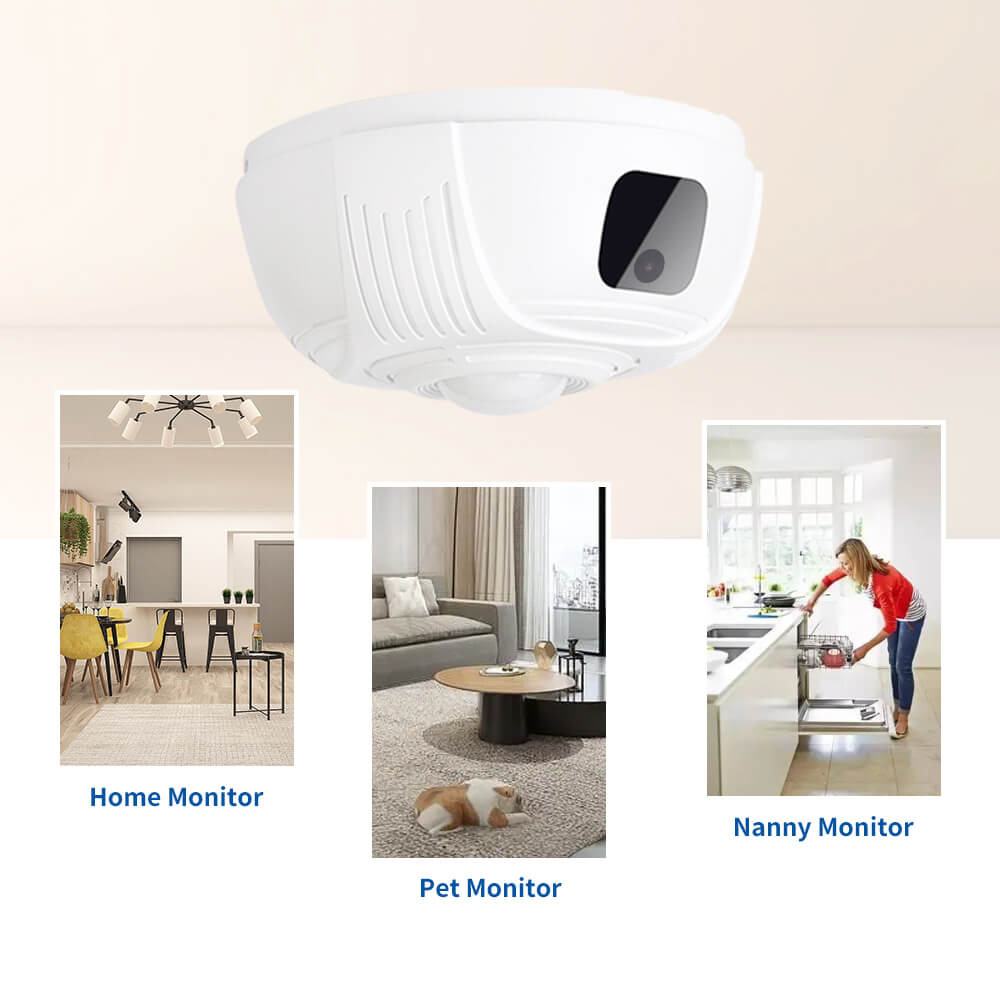
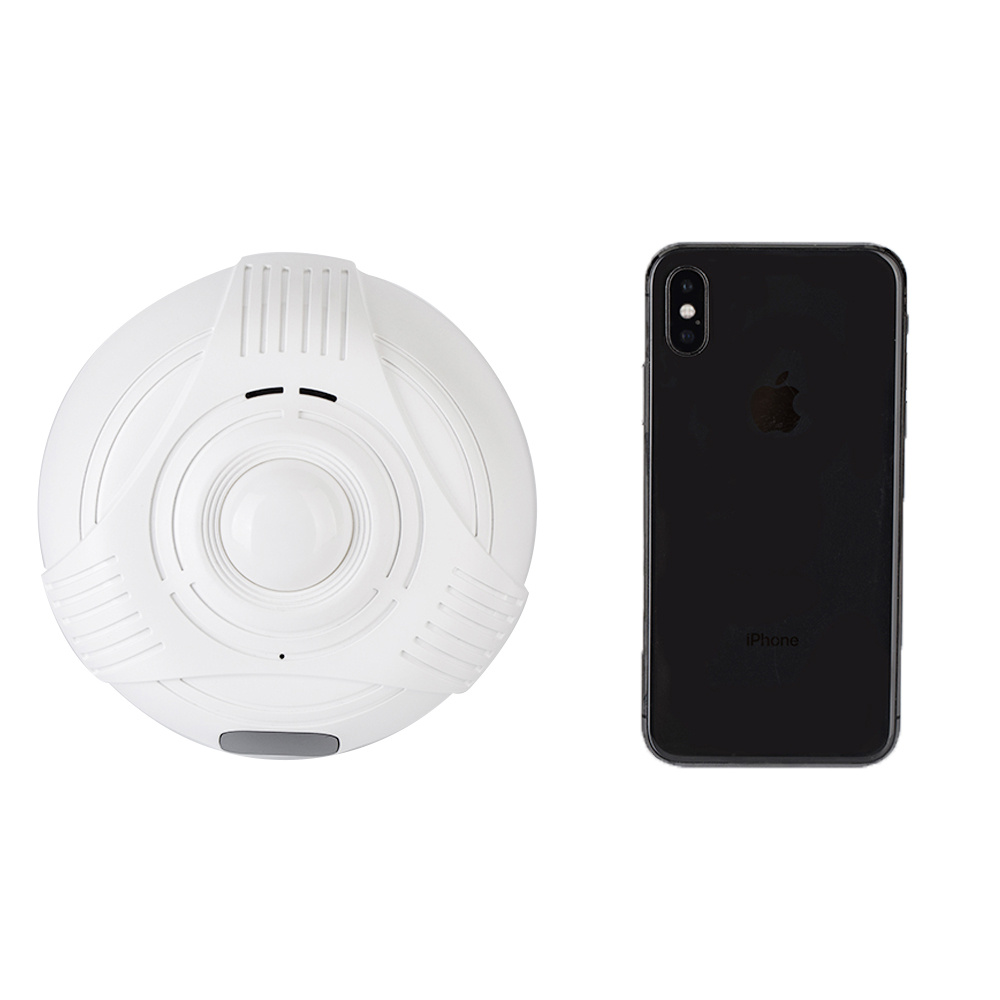
Eleshine’s Tuya WiFi Smoke Detector Camera blends into any space while offering HD video, real-time alerts, remote monitoring, and smart-home integration—an advanced alternative to traditional security systems.
Tuya WiFi Smoke Detector Camera | Discreet Smart Security Solution
Master the Tuya Smart App ecosystem. A professional guide to unified IoT control, remote monitoring security, and automation for B2B smart device integration.
Tuya Smart App: Unified IoT Management for B2B Ecosystems